Note: Any amendments to data access rights must comply with the GLOBALG.A.P. General Regulations (GRs) and the Data Access Rules (DARs).
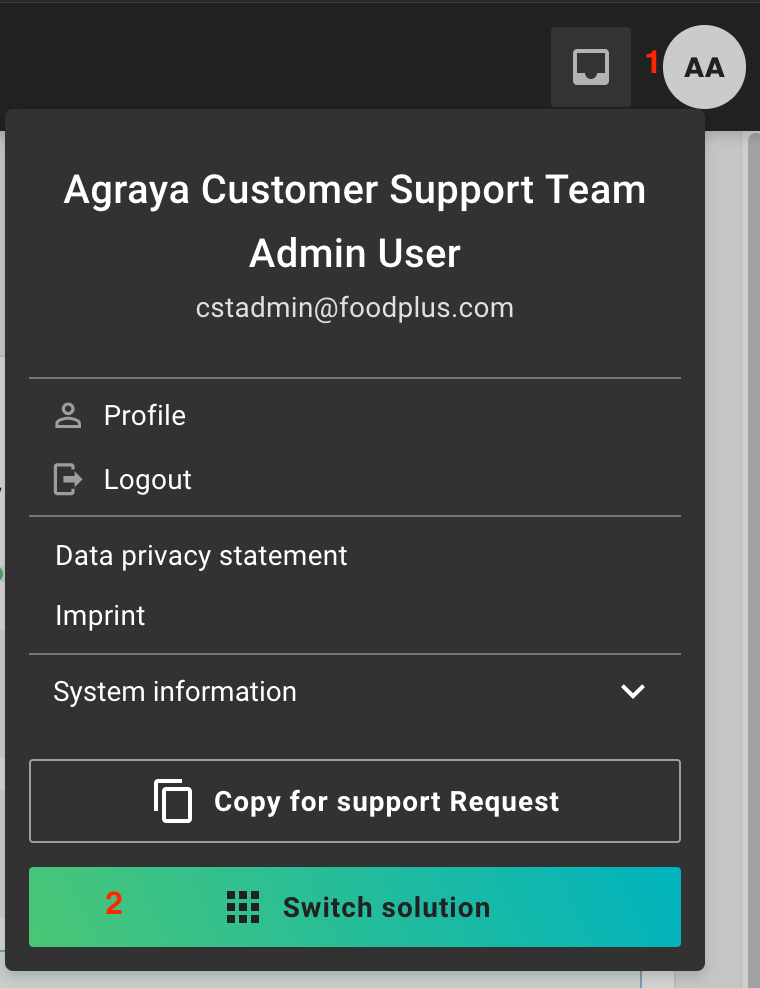
To begin, click your username initials in the top‑right corner of CertifierOS and select "Switch solution.”
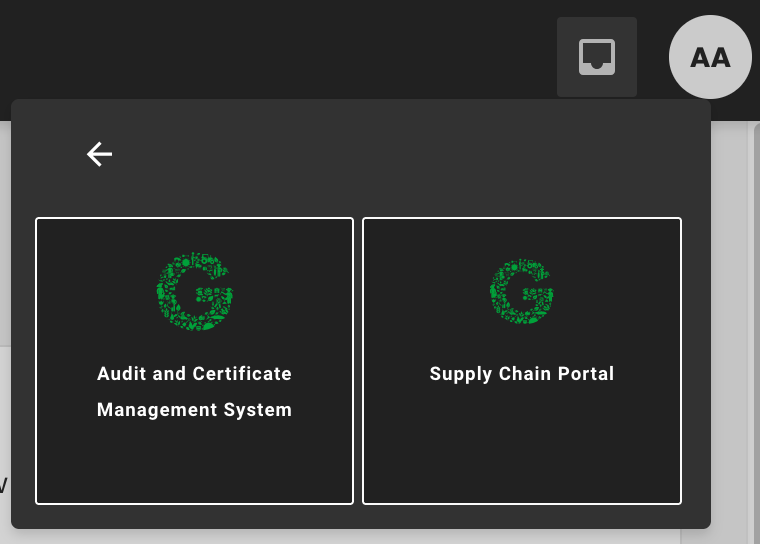
Select Supply Chain Portal:
Once in SCP the use case to select is "Data Access Groups" from the left-hand banner:
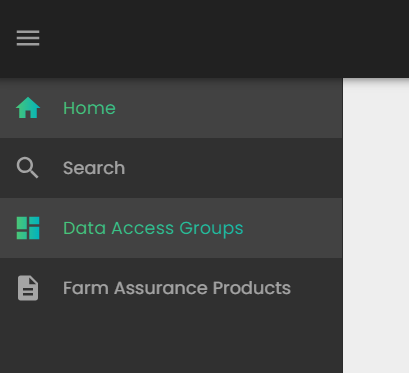
You will have the following options to modify the certification data access rights for a specific producer:
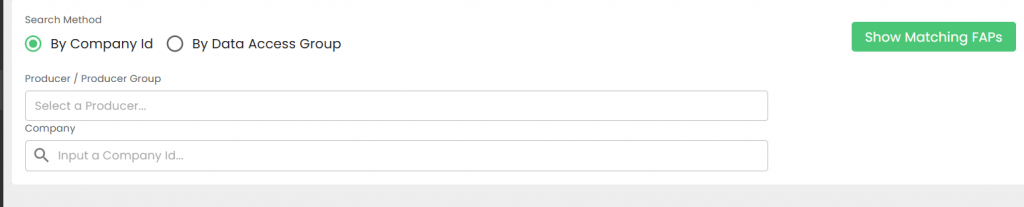
Note: The CB can only amend the Data Access Rights of their own producers.
Reminder: "The minimum and obligatory data release level, along with additional information on confidentiality and data use, is defined in the GLOBALG.A.P. data access rules. If the applicant does not agree to the minimum data release level, the applicant is not complying with the GLOBALG.A.P. sublicense and certification agreement and cannot be certified."
Add your producer's/Producer group's GGN:
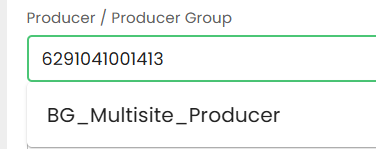
Next, choose whether you want to grant access to a single company or to an entire access group:

Enter the Company ID of the company for which the producer wants to grant additional data access rights.
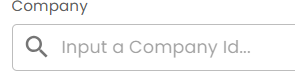
Note: The CB must obtain the Company ID directly from the company.
To select a Data Access Group click on the relevant button to reveal the available groups and choose the one selected by the producer/producer group:
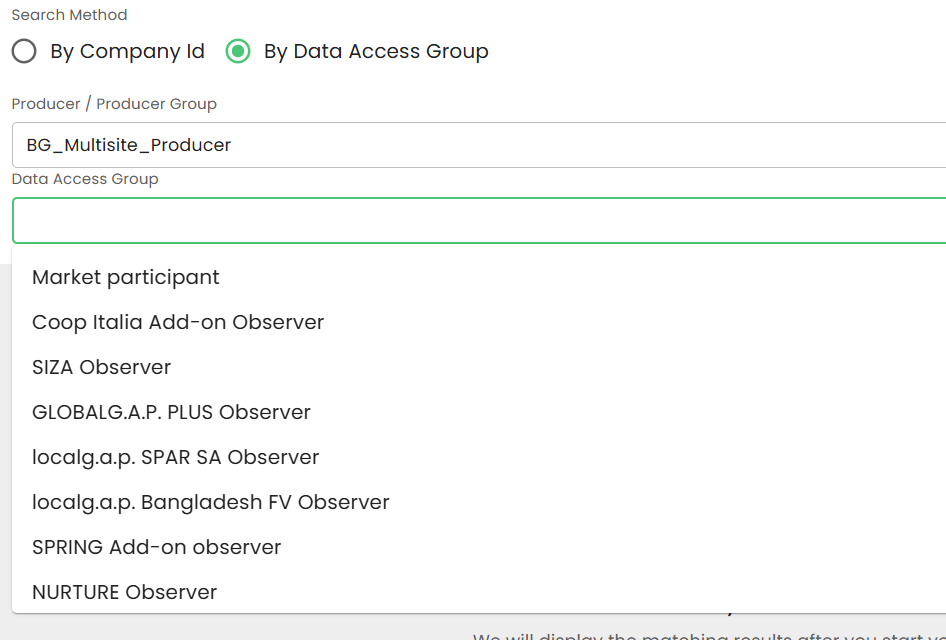
Next, the view will look similar for both options (granting additional access rights to a company or a data access group).
In this example, we’ll continue with an access group: Market Participant example.
Step: Click on the green “Show Matching FAPs” button:
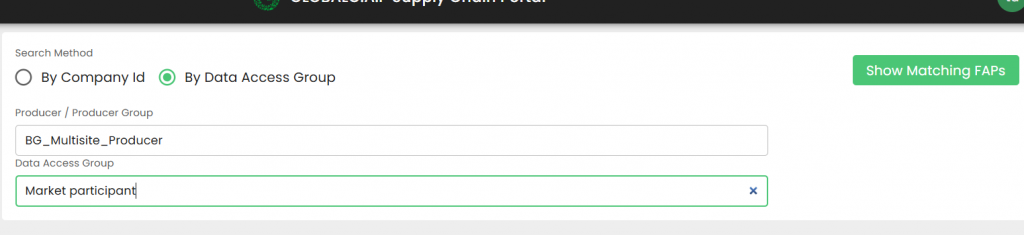
If this GGN is linked to your CB results like this will show up:
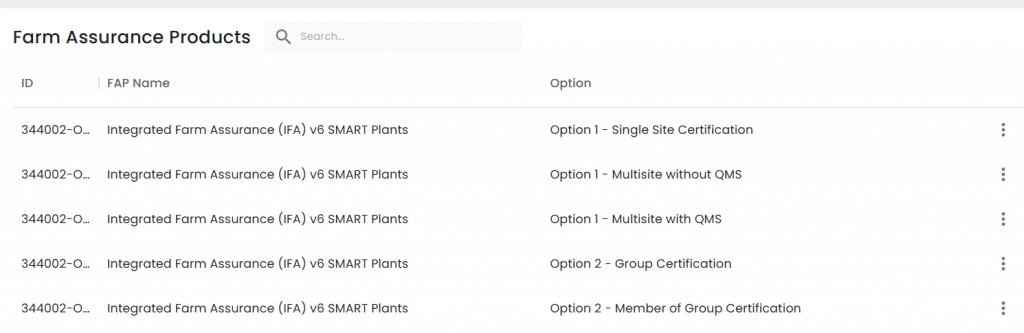
Here, you need to select the Farm Assurance Product and certification Option for which you want to modify the access rights.
In this example, this GGN has an active v6 Smart Plants – Option 2 certificate.
Therefore, we select this option, click on the three dots next to it, and then choose “Manage” from the menu:

Note: Any changes we make here can be reverted later by clicking “Reset to Default.”
This will remove all access rights we manually assigned and restore the default access rights.
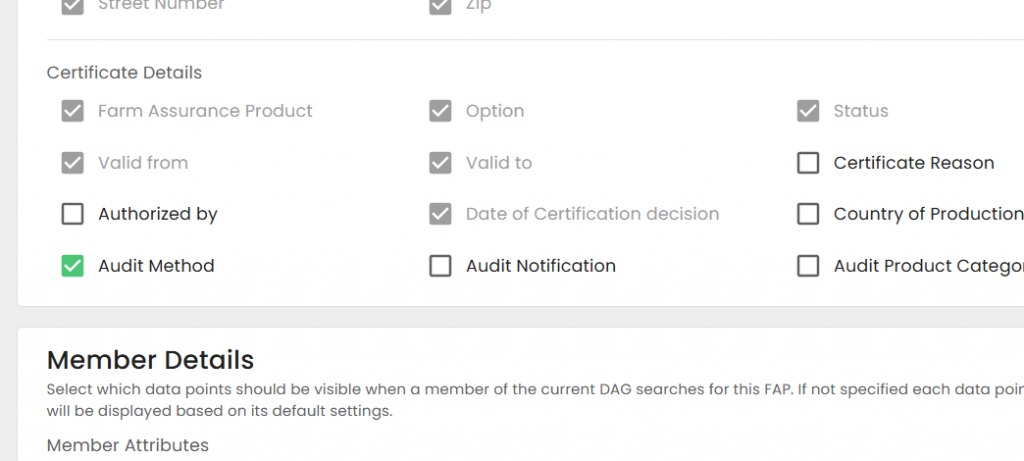
All data points that exist in the certificate view in SCP — including bookmarking, the bookmarking API, and related attributes — will appear as seen below.
Some fields are already visible, and their checkboxes are both selected and greyed out.
This is because CBs cannot reduce visibility below the DAR / default settings.
These default‑visible data points are fixed and cannot be modified.
All other fields with unchecked (and active) checkboxes can be enabled.
Checking these boxes will grant visibility of that specific data point to the selected access group (or company).
Note: "No data other than indicated in the GLOBALG.A.P. data access rules can be released by the GLOBALG.A.P. Secretariat or CBs to any other party without written consent of the applicant."
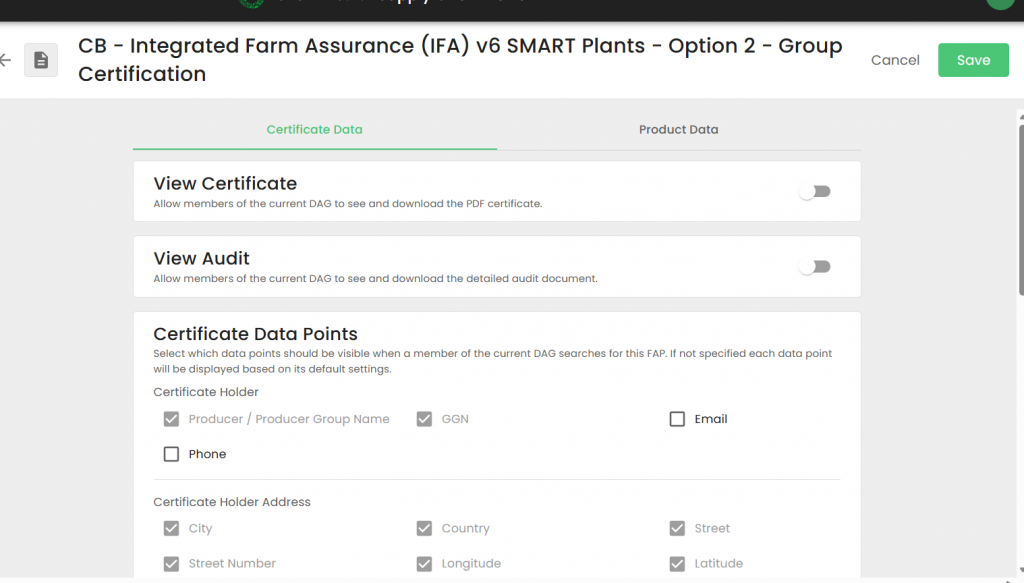
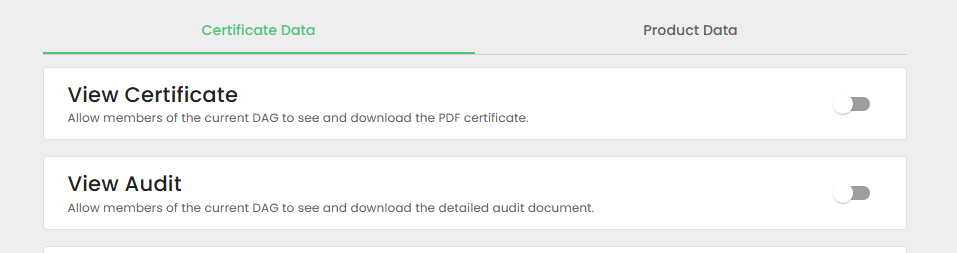
Activating the options shown below will make the certificate PDF and audit report downloadable respectively.
Note: Applicants must provide written consent approving that CBs can share the certificate/LoC pdf and the audit report with other parties, as this is beyond the minimum data release level described in the GLOBALG.A.P. data access rules.
Additional data points can be made visible:
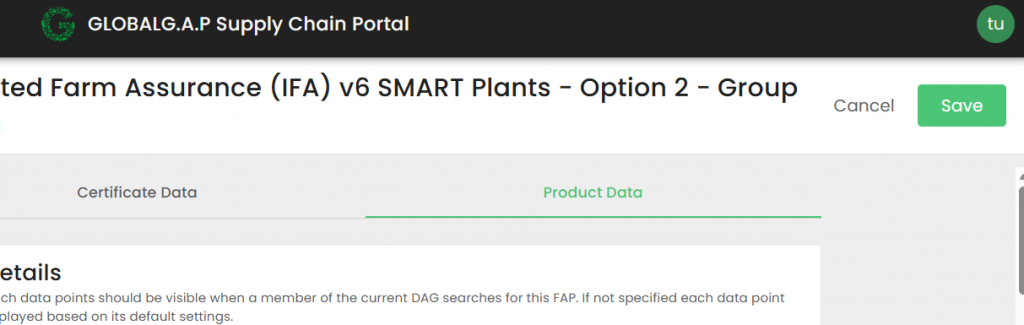
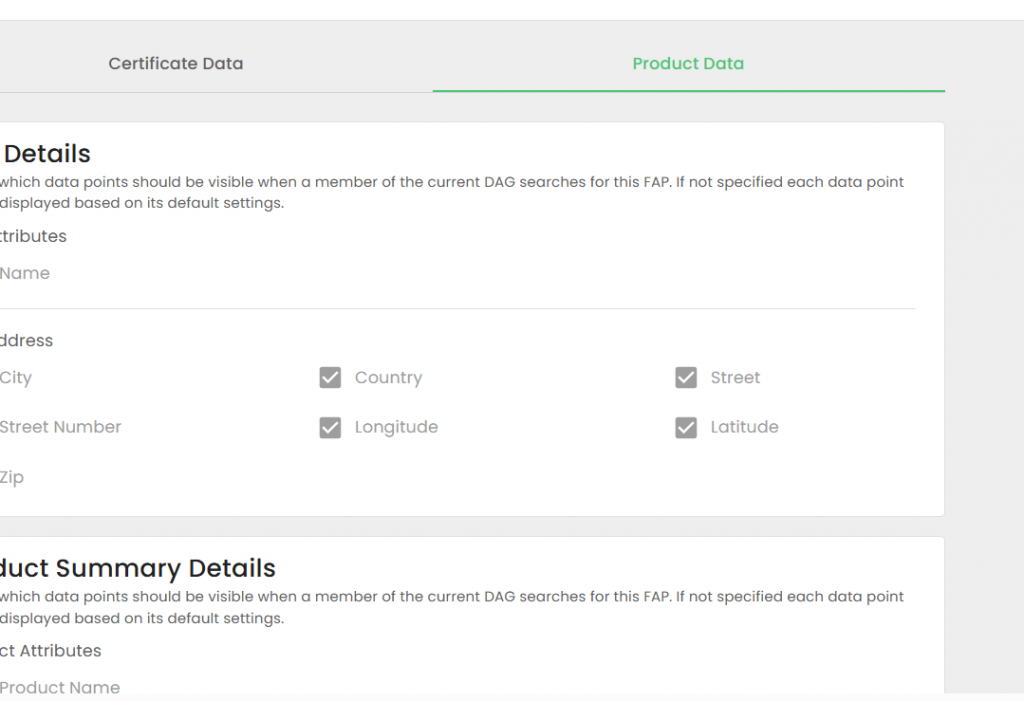
In the second tab, “Product Data,” the product attributes can be made accessible:
To save the changes press on "Save":