
Redesigned Main MENU buttons:
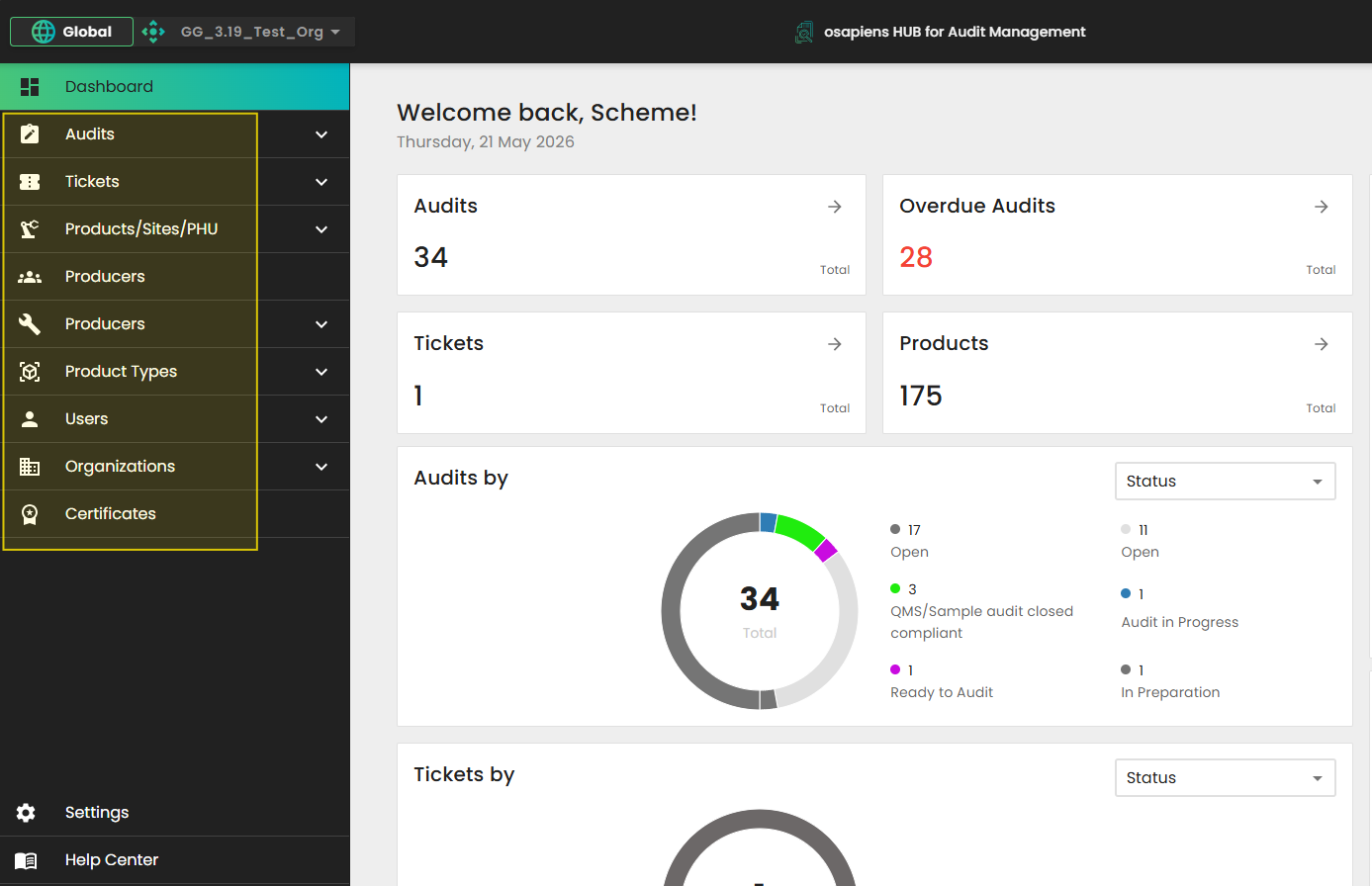
The design of the main menu buttons in the latest version of CertifierOS has been revised to enhance usability and more accurately represent their respective functions.
Note: The availability of menu icons may vary depending on the user’s access rights.
New Main Menu design:
Audit Template Management:
Improvement in "Sub Producer" tab for Option 2 Audits
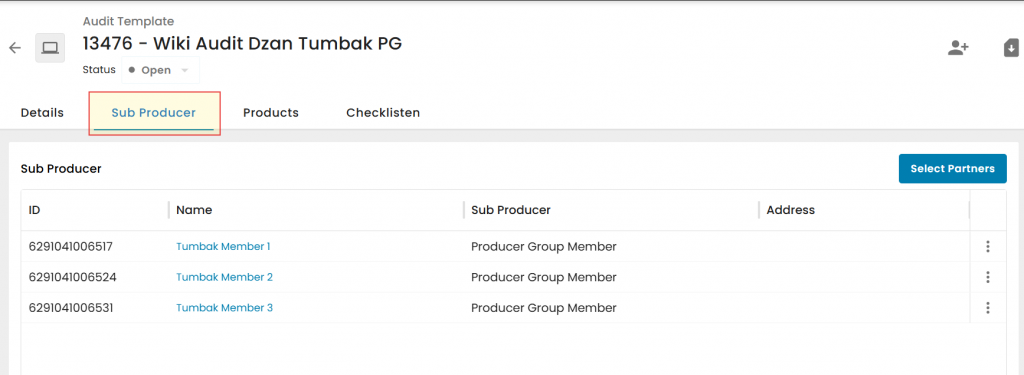
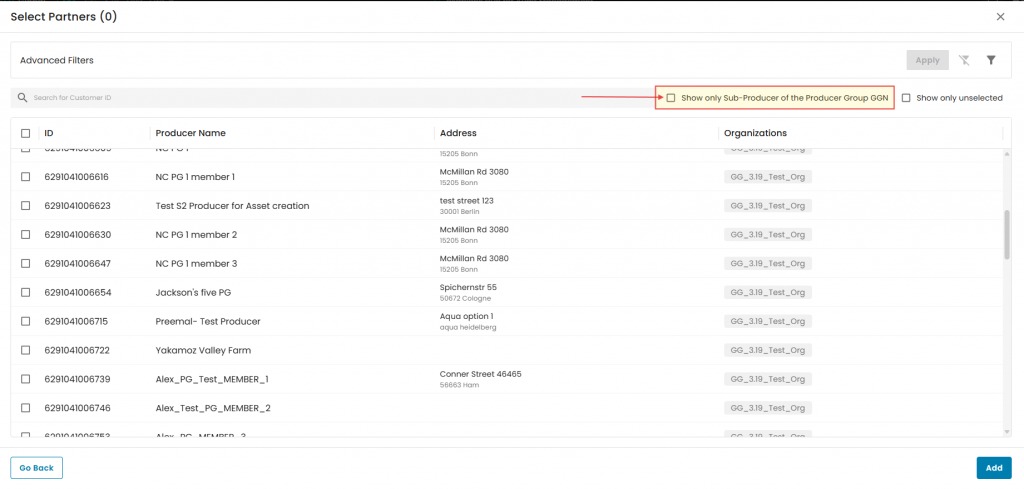
The Sub Producer (PG Members) function for Option 2 audits has been improved. Users can now quickly filter and add PG Members into an audit by selecting the "Show only Sub-Producer of the Producer Group GGN" checkbox, making the process faster and more efficient.
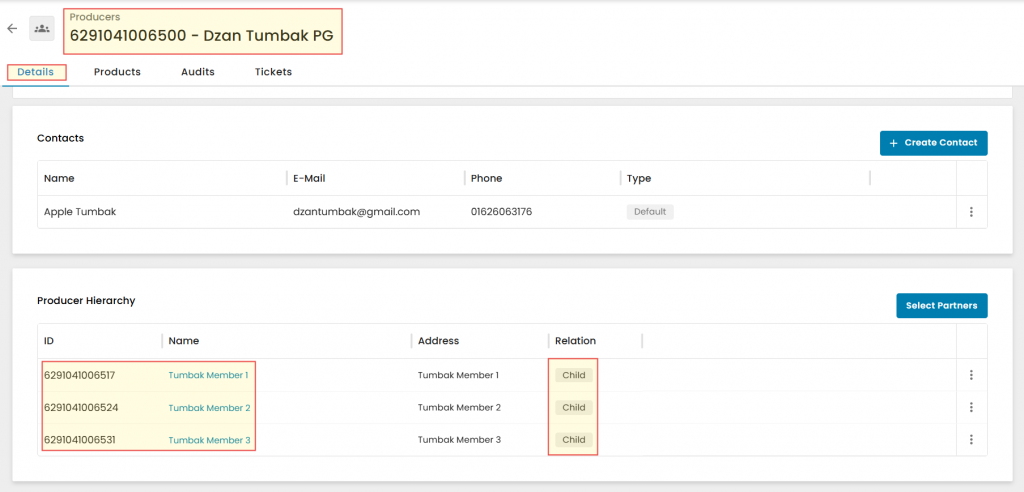
Note: Only PG Members listed as Children in the producer’s Producer Hierarchy will appear as selectable options, as shown below.
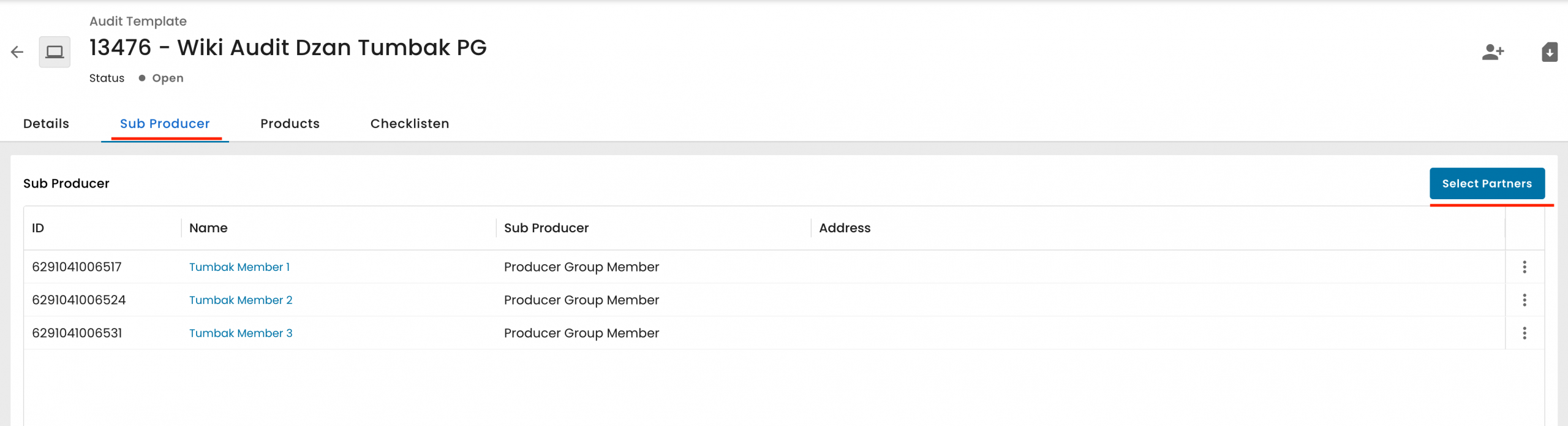
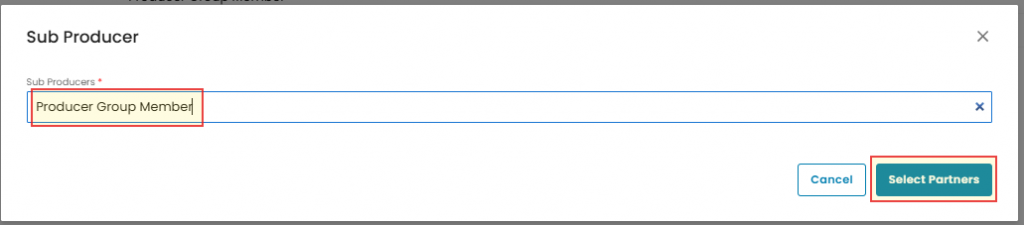
Go to the Sub Producer tab and click Select Partners:
In the next Sub Producers pop-up window, choose Producer Group Member from the dropdown list (other options may not be available in your case), then click Select partners to proceed.
On the next "Select Partners" pop-up window, select "Show only Sub-Producer of the Producer Group GGN" checkbox
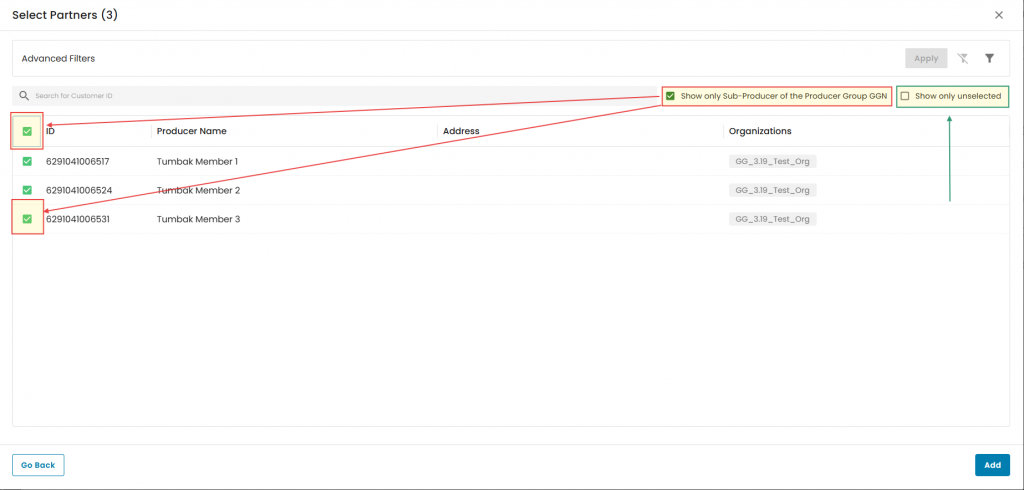
The system displays only sub-producers (PG members) associated with the Producer Group (PG). Users may select all listed PG Members or choose specific entries individually. To include additional members in an existing audit, apply the “Show only unselected” filter. After completing the selection, click “Add”.
Adding Products to an audit:
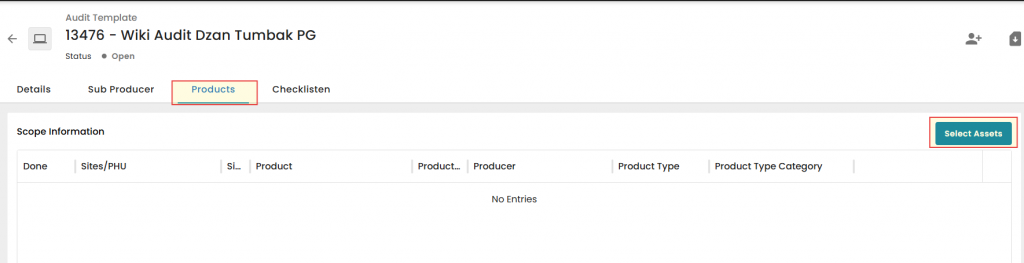
Enhancements have been implemented on the Products tab, making it easier to add products associated with Producer Groups, PG Members, and Option 1 Producers (Single Site and Multisite).
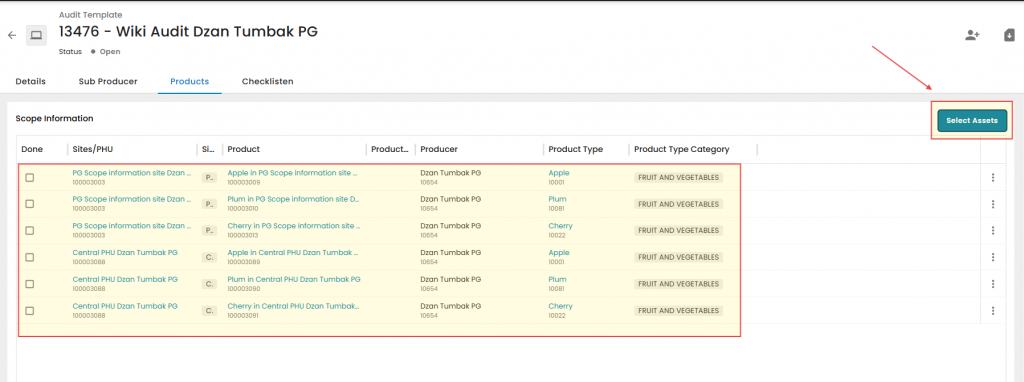
The button has been renamed to “Select Assets”. When selected, the system opens the Advanced Asset Search page.
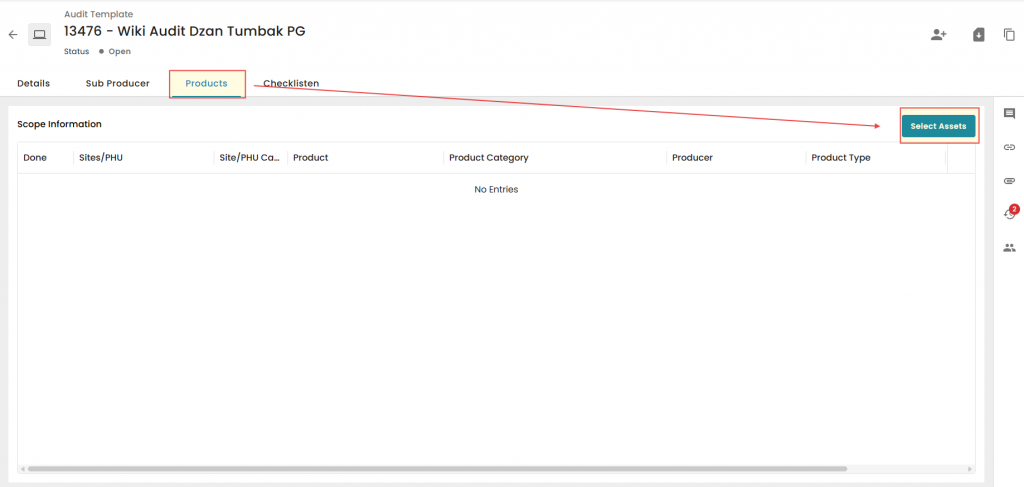
On the Advanced Asset Search page, click the Funnel icon, choose Product as the type, and then click Apply.
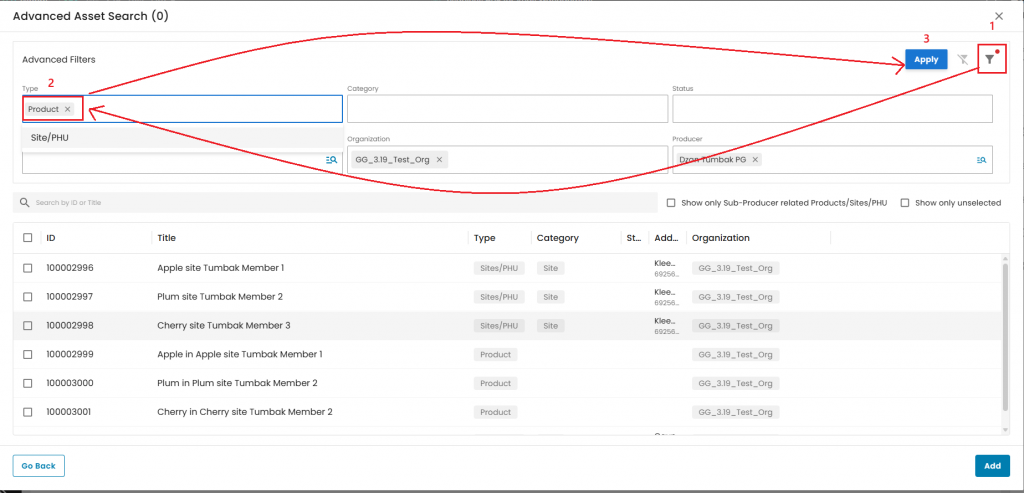
Adding products to Option 1 Audit - Individual Producer Certification:
Follow the steps described above and select “All” to add all products of this producer in bulk. This completes the product selection process for an Option 1 Individual Producer.
Note: For Option 1 - Individual producer Audits, the products shown in the list will be registered with Option 1 producer, and the list will be complete.
If certain products of this producer are not applicable for the specific audit, they should be deselected accordingly.
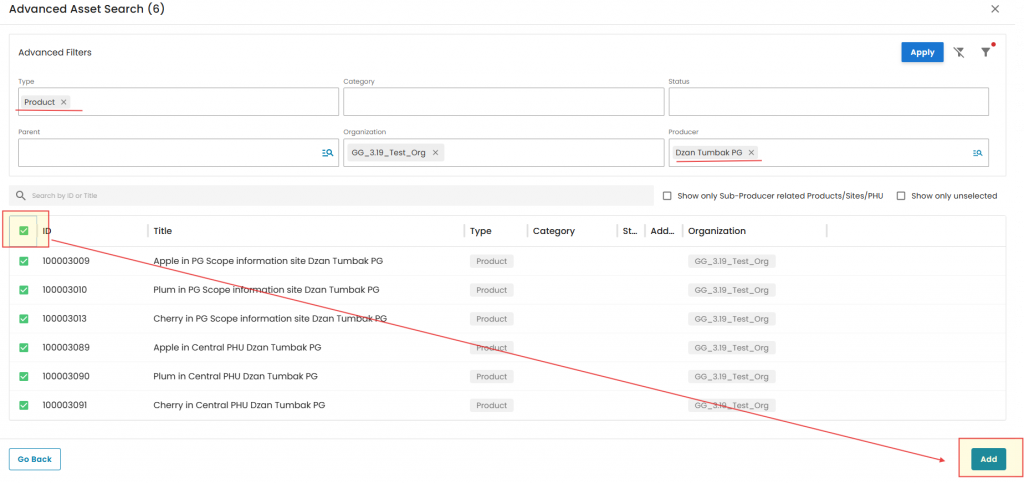
Add Product to Option 2 - Producer Group Certification:
Note: For Option 2 Producer Group (PG) audits, the system initially lists all products registered at the Producer Group level (e.g., PG Scope Information Site, Central PHU).
Note: There are two available options to add products for Option 2 - Producer Group.
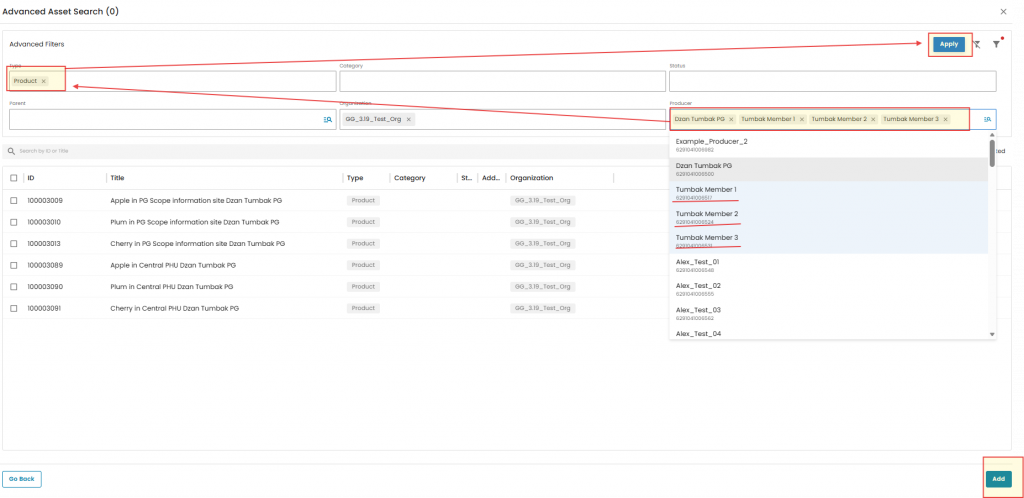
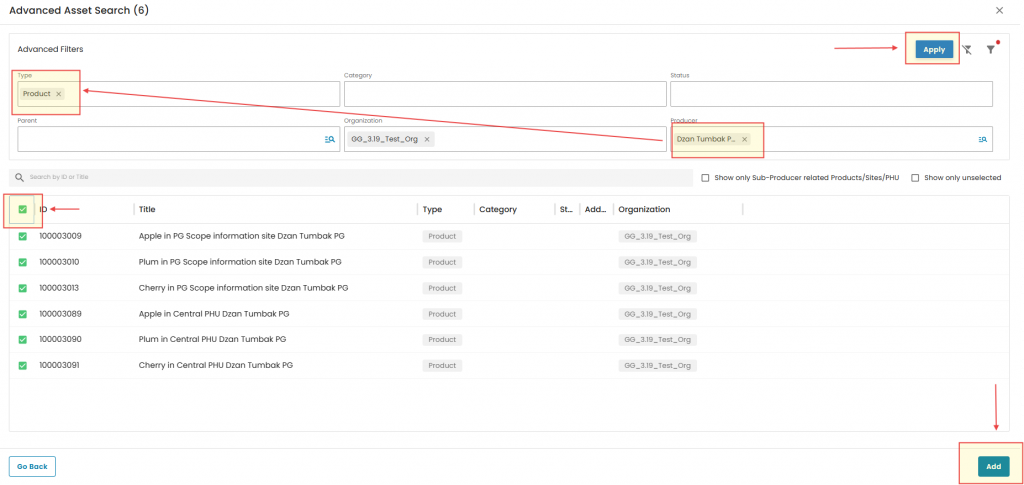
2. On the Advanced Asset Search page, the Producer Group is preselected in the Producer tab, displaying all assets registered at the PG level (including PG/Multisite Scope Information Site, Central PHU, and the PG’s own site).
Apply the Product filter and click Apply. The system will display all PG-level products. Select All and click Add to proceed.
The system returns to the Audit’s Products tab, showing the added PG products. Click Select Assets again to add PG Member-level products.
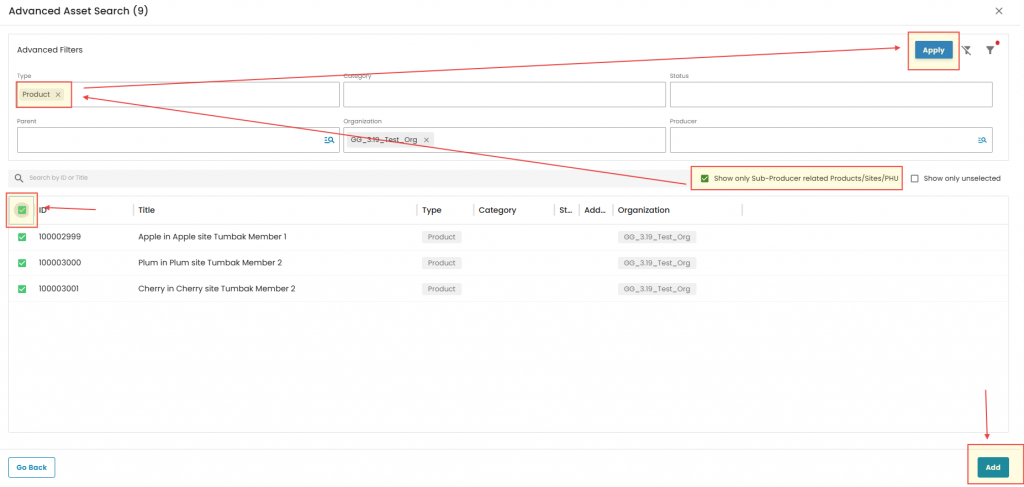
Within the Advanced Asset Search, enable “Show only Sub-Producer related Products/Sites/PHU”. Select Product as the asset type and click Apply.
The system will display only products registered with PG Members. Select All and click Add to proceed.
The full list of products has now been compiled and is shown below.

The Audit "Checklist/smartform" tab:
The updated Checklist/Smartform tab (shown below) groups Smartforms into Task Forms and Asset Forms.
Note: The Asset Forms section may be empty for certain Audit Reporting options.

"Mass Answer" functionality:
The Mass Answer feature is now limited to Asset Smartforms, where repetitive checklist entries are common. It is not available for Task Smartforms.
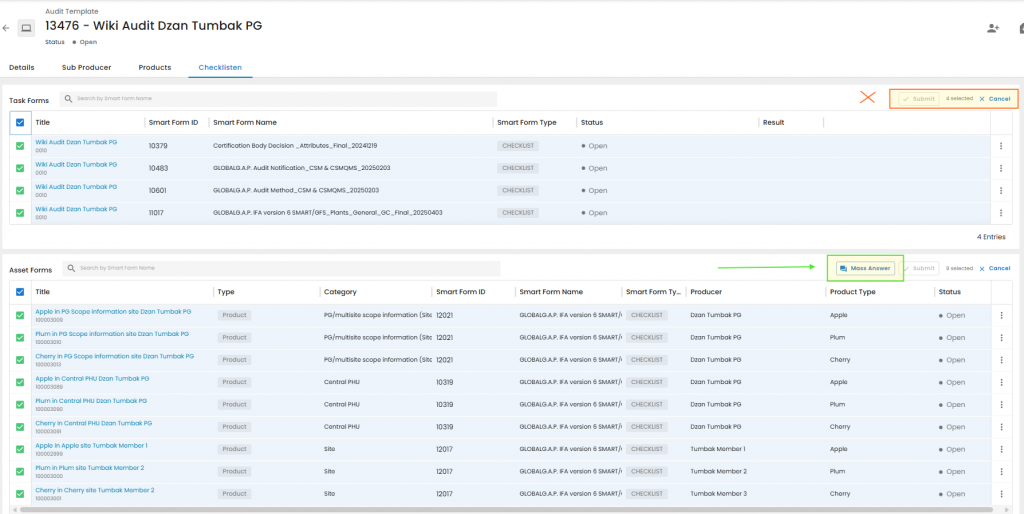
Note: For the "Mass Answer" button to appear, more than one Asset Smartform has to be selected.
For more information on how to use "Mass Answer" functionality, please visit How to use the smart form attribute mass entry feature in CertifierOS - GLOBALG.A.P. Wiki Site
Mass Smartform "Submit" functionality
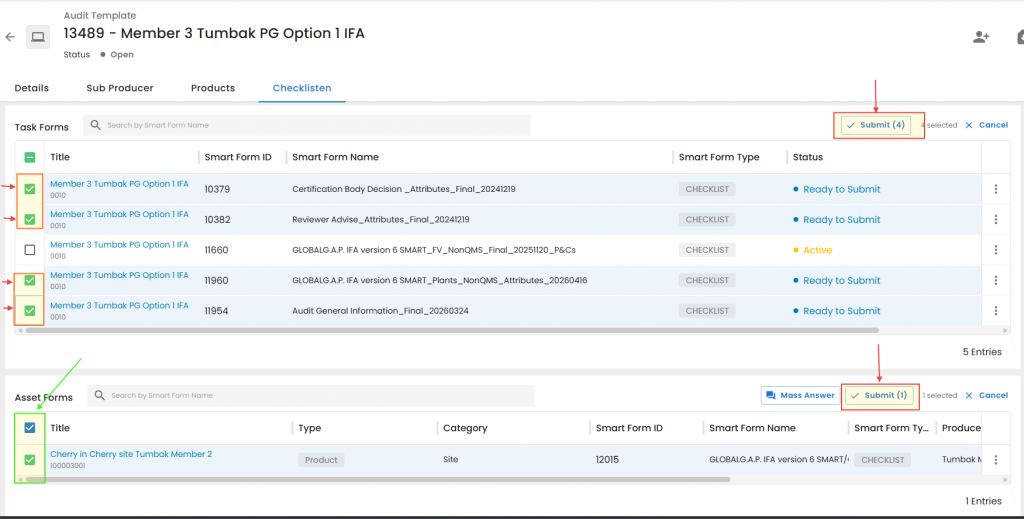
This functionality enhances the existing Smartform “Save and Submit” feature, which previously applied only to individual Smartforms. Smartforms can now be saved and submitted in bulk, improving efficiency and streamlining audit management.
To use this feature, select the Smartforms to be submitted, either individually or by using the “All” checkbox. Once the selection is complete, click “Submit”.
Note: As with individual “Save and Submit”, this action closes the selected Smartforms and prevents further editing.
The example below includes an Active P&C Smartform that has not been completed due to time limitations. This is expected behaviour and does not indicate a system issue.
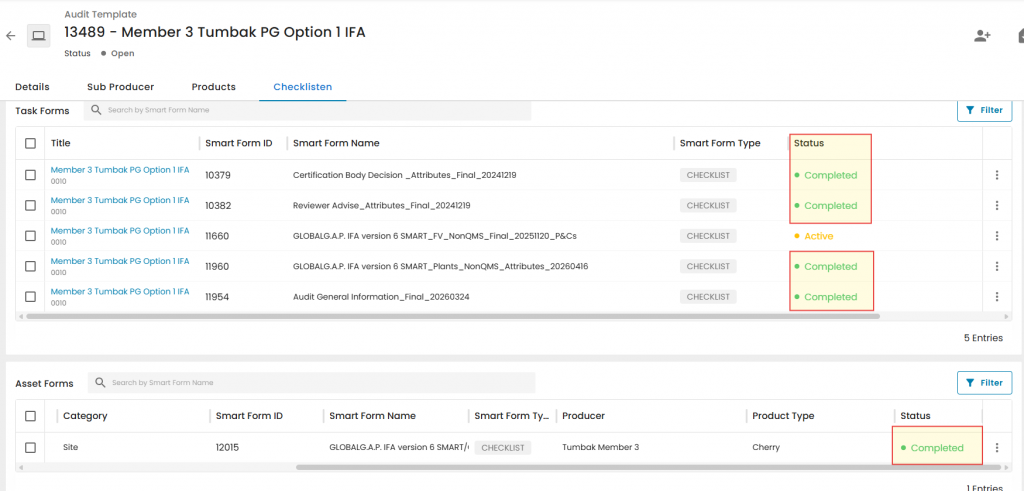
Important: Smartforms should only be submitted in bulk (or individually using “Save and Submit”) after the audit review process has been completed. During audit management and data entry, use the “Save” button available on each Smartform page to preserve progress and keep the forms editable for any necessary corrections.
Submitted Smartforms can only be "unlocked" via the Certificate Modification process!!!
Producer page: new features:
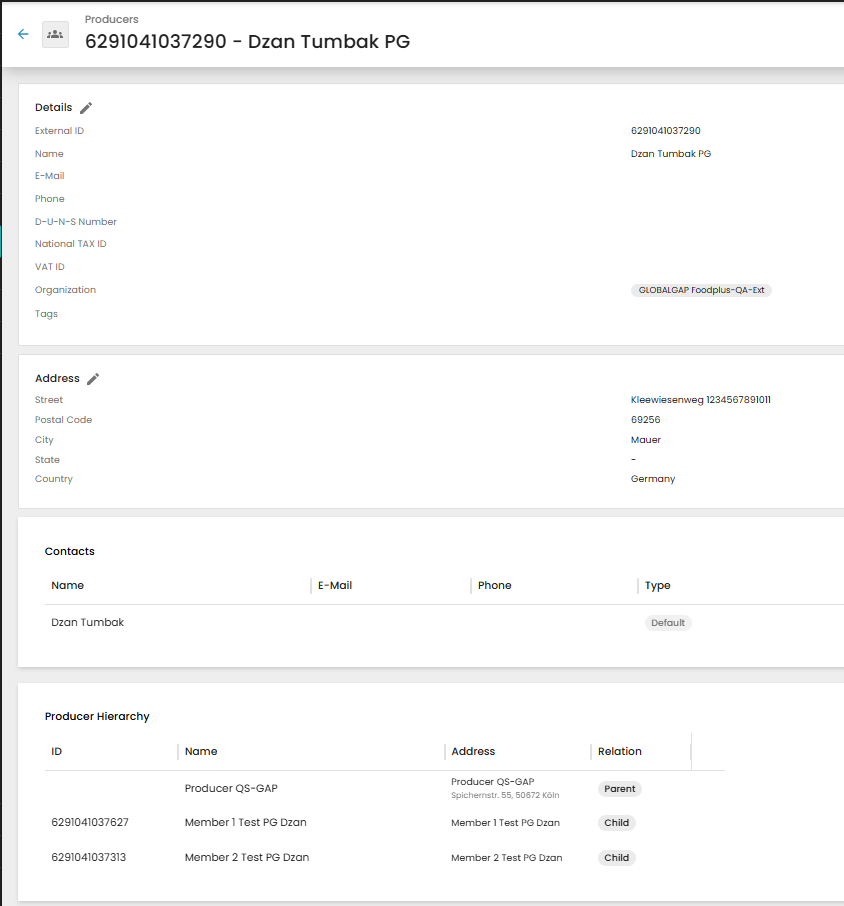
The Producer page user interface has been enhanced with additional functionality. In the previous version, it displayed only core producer information (e.g., GGN, name, email, Tax ID, CB name), as well as address details, contacts, and the producer hierarchy, as illustrated below.
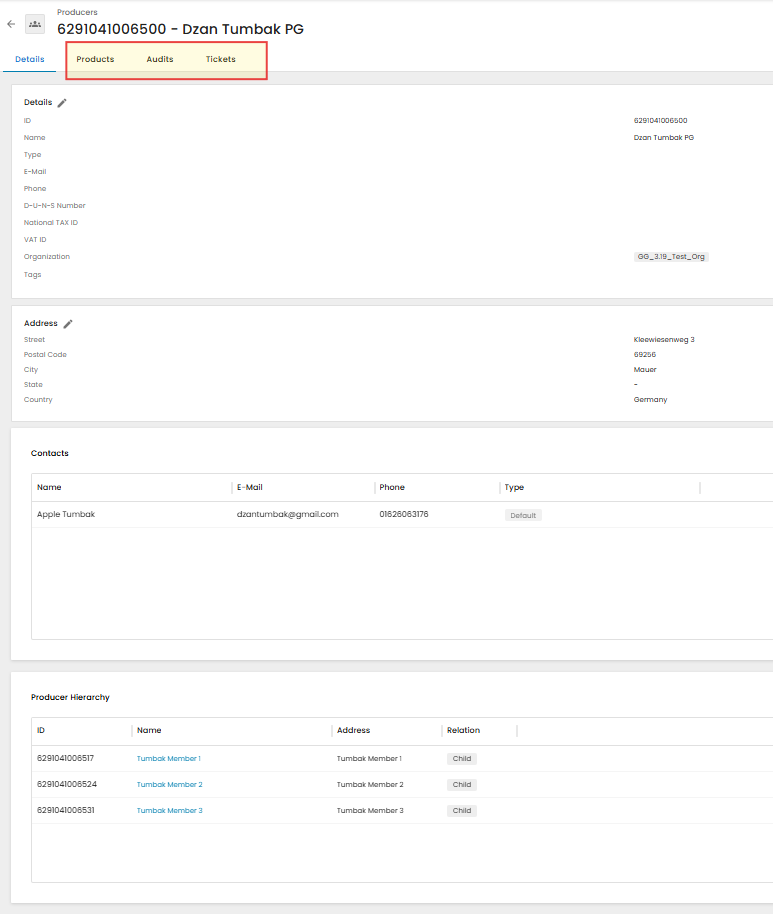
The updated version features new tabs—Products, Audits, and Tickets—allowing users to view all information related to the selected producer in one place, as shown below:
The "Products" tab:
Initially, the tab displays all registered assets (sites and products) associated with the producer. This overview provides quick insight into the producer’s registered sites and products, supporting more efficient asset management.
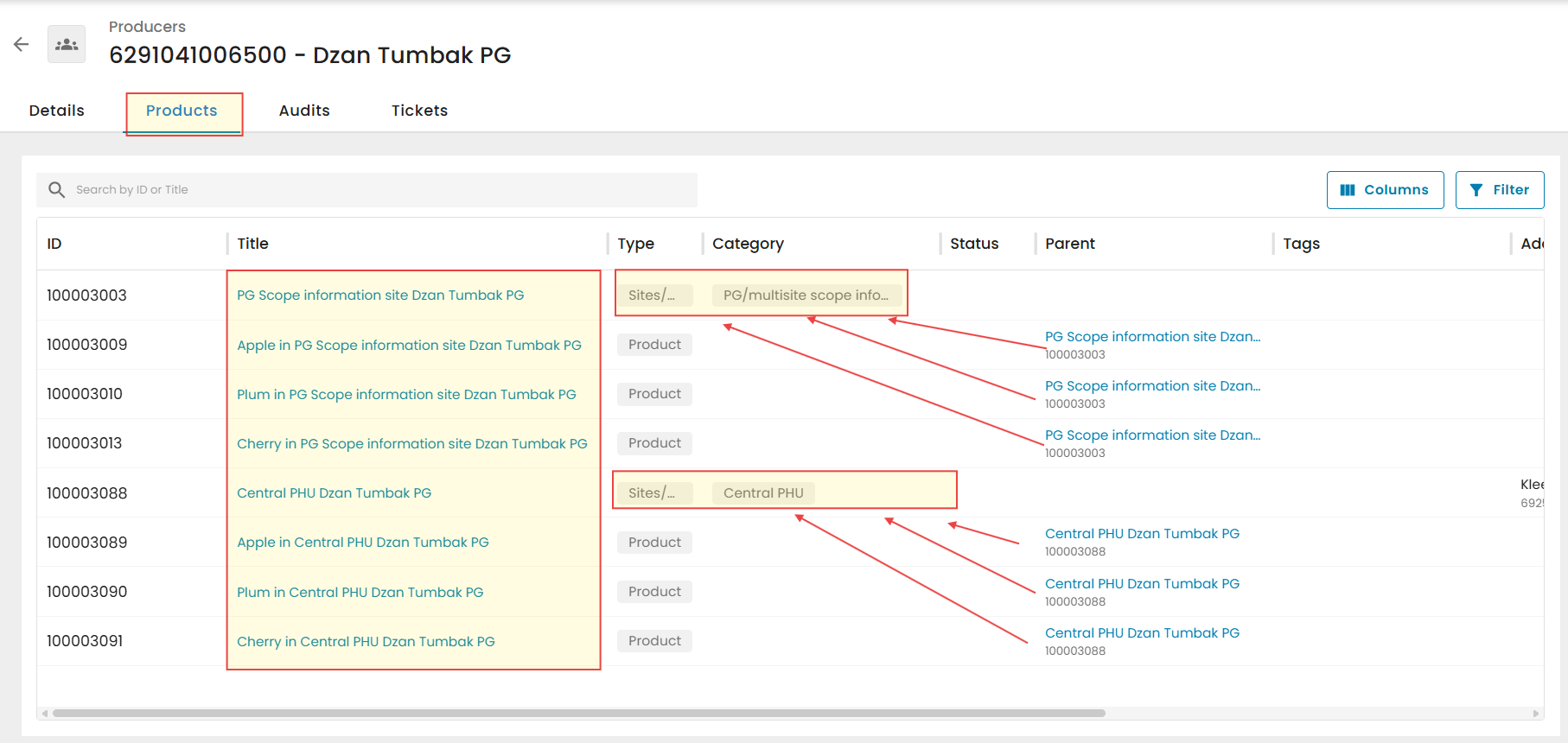
To filter by a specific asset type (Sites or Products), use the Filter function to select the appropriate criteria, then click Apply Filter to display the results.
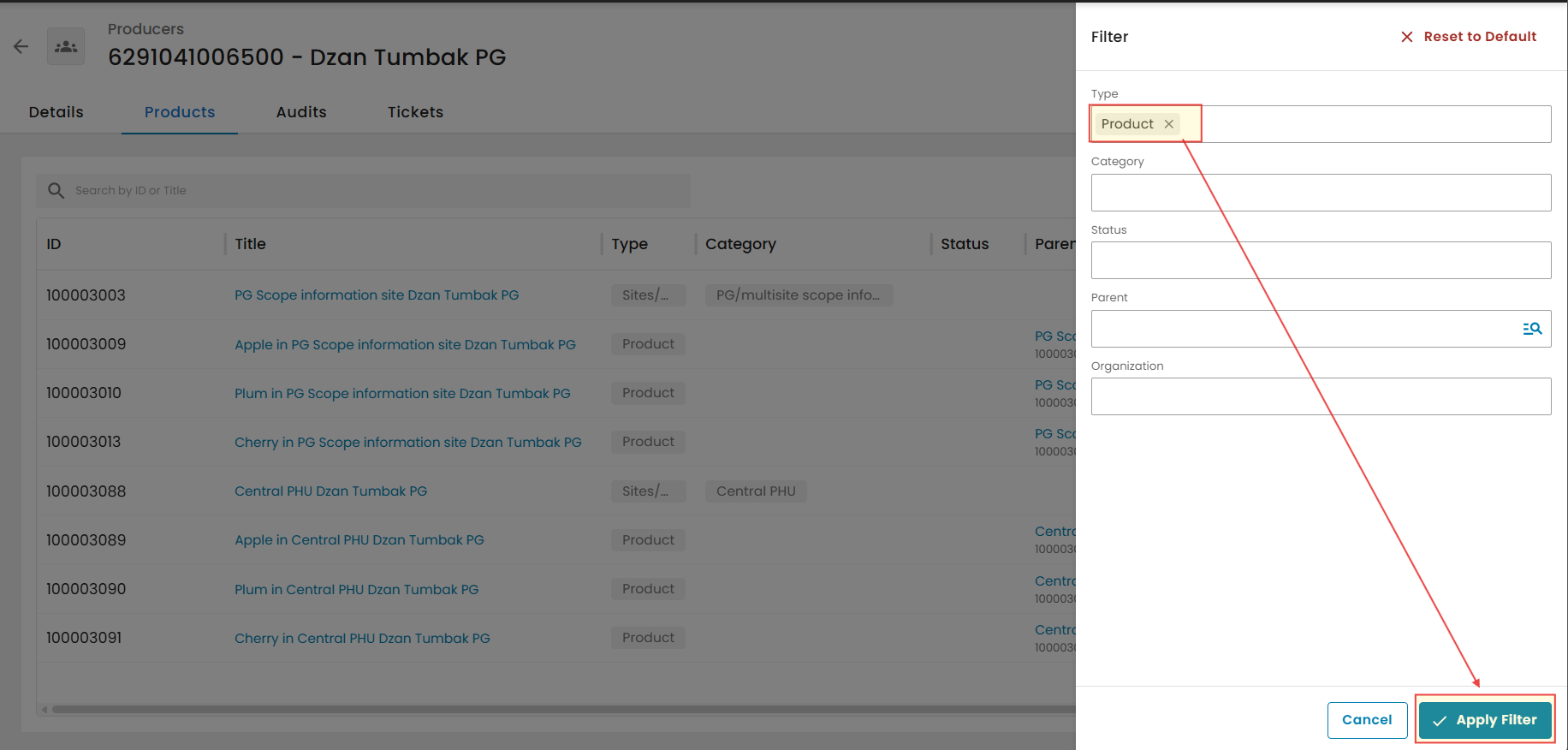
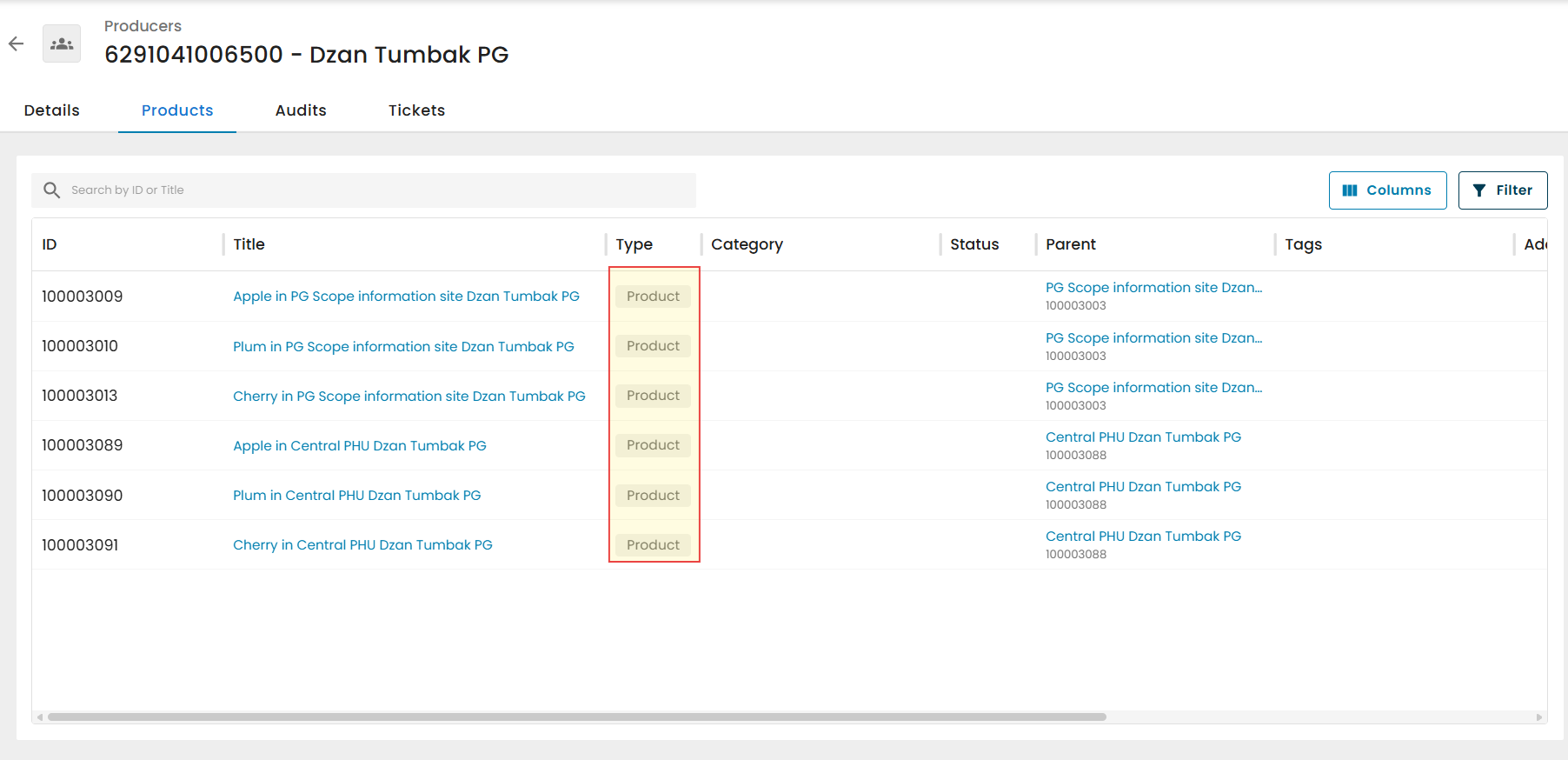
As illustrated below, the tab displays only Products according to the selected filter criteria.
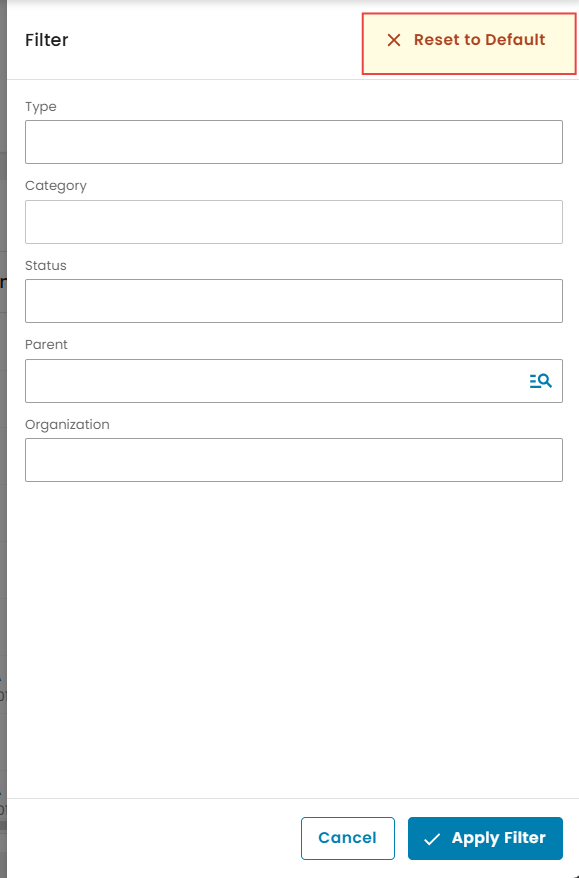
Note: The Products tab may include assets from other producers within the same Certification Body. Use Filter → Reset to Default to display only assets related to the selected producer.
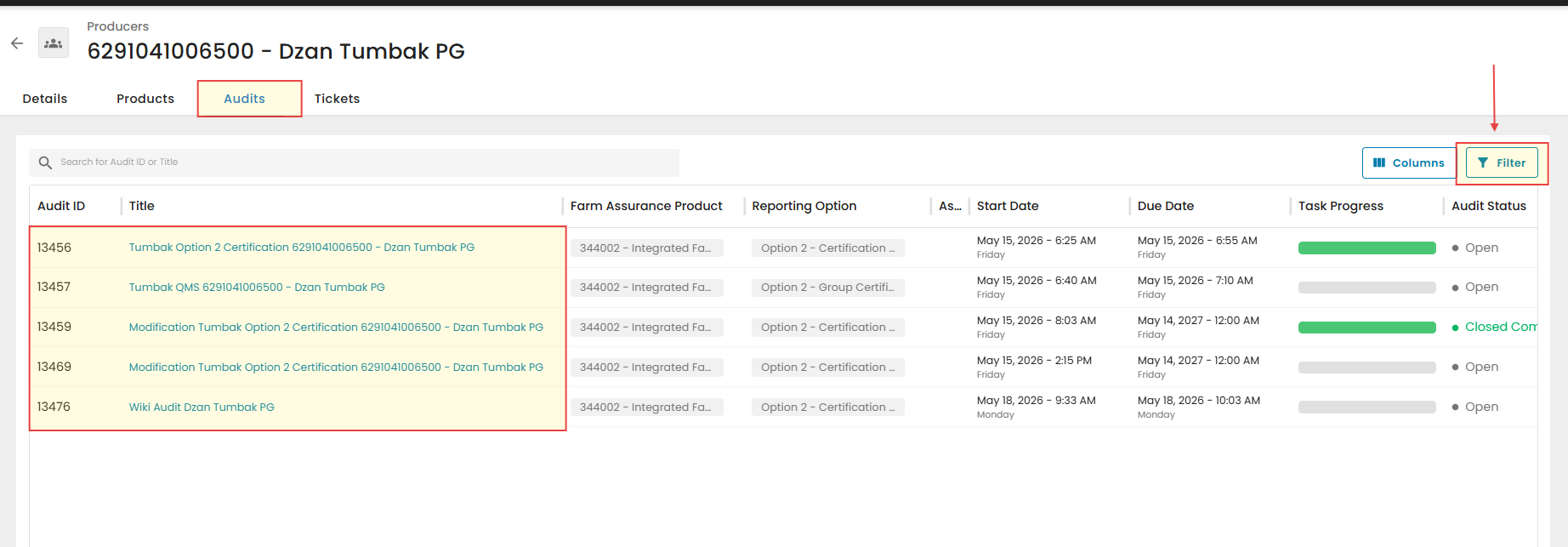
The "Audits" tab:
The Audits tab, similar to the Products tab, lists all audits for the selected producer (GGN). This overview improves visibility and audit management. Filters are available to refine results by FAP, Reporting Option, Audit Type, Audit Status, assigned auditor/reviewer, and additional criteria.
The "Tickets" tab:
This page presents all non-conformance tickets generated for audits linked to the selected producer. The Filter function allows results to be refined based on level, corrective actions, type, priority, ticket status, and other parameters.
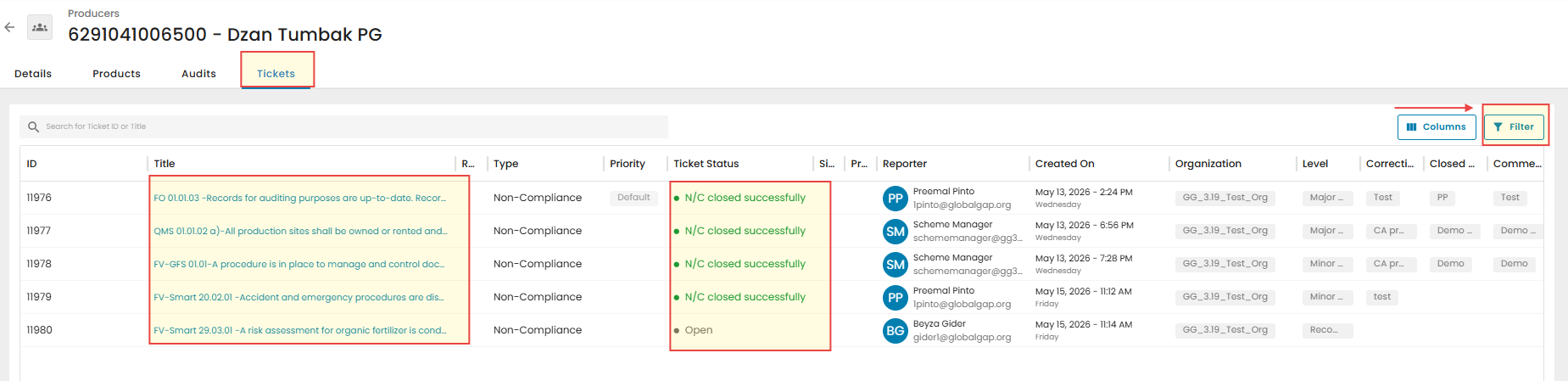
Note: The Tickets page may display non-conformance tickets linked not only to the selected producer but also to other producers. To restore a producer-specific view, use the Filter function and select Reset to Default.