
To adjust the Certificate status or/and the validity date of certificates please follow the instructions below:
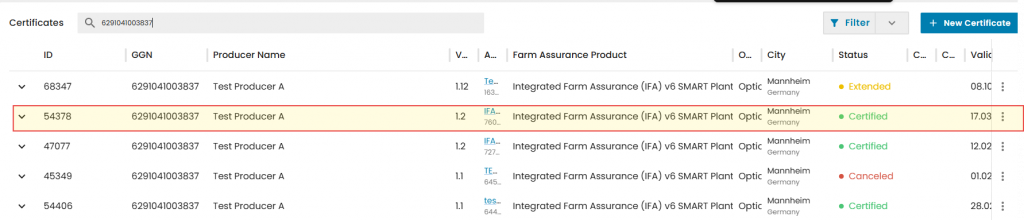
Step 1. Search and select certificates for adjustment:
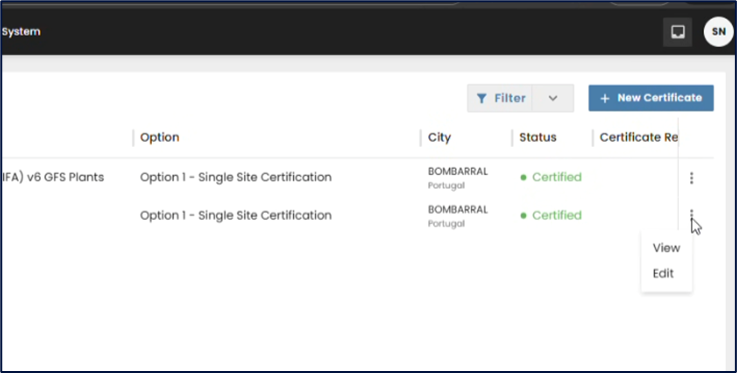
Click on „Edit“ to adjust a certificate:
Step 2. This Pop-Up opens now. If you want to adjust the certificates validity: click into the field and select a new date:
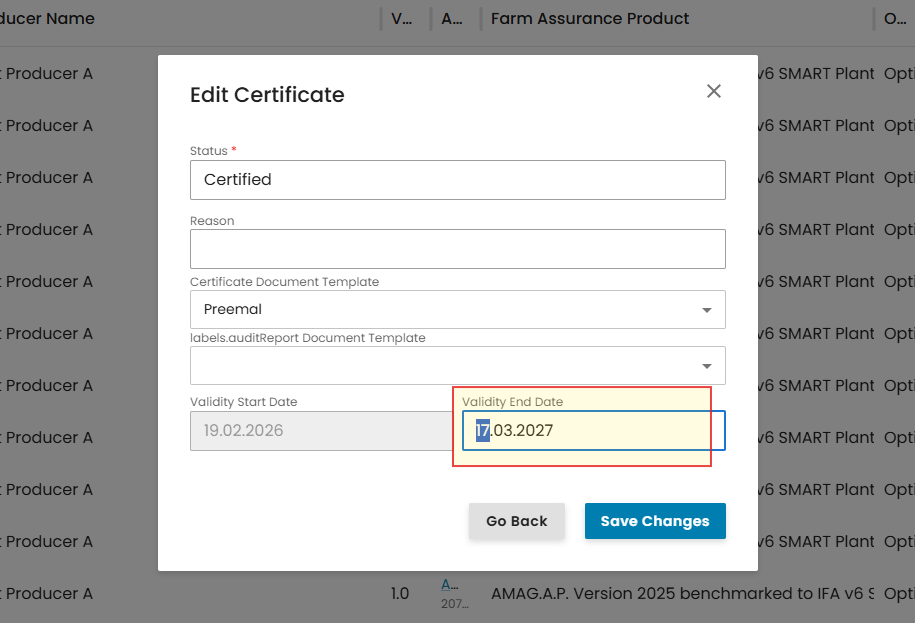
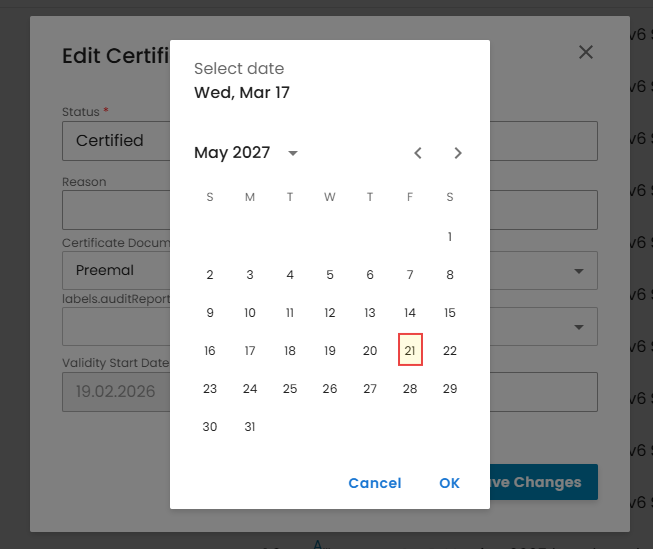
Note: Selecting an earlier valid‑to date (e.g. to shorten a certificate) requires a modification audit.
To change the Certificate status, follow Step 1 as explained above.
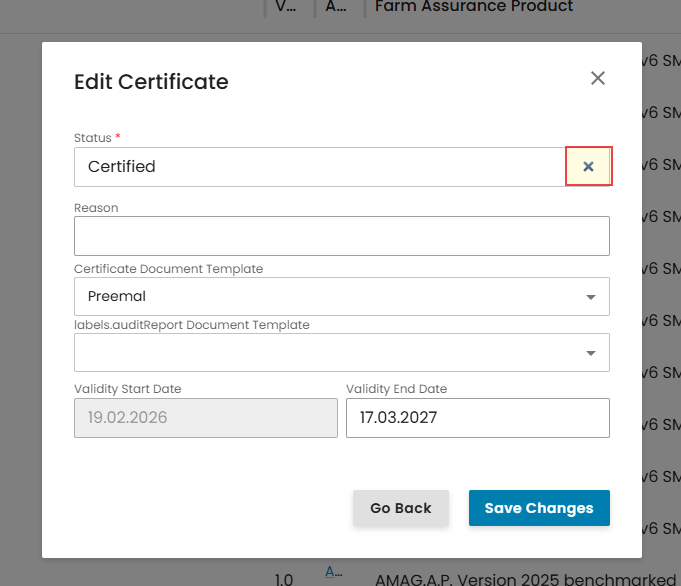
Remove the current certificate status by clicking on X
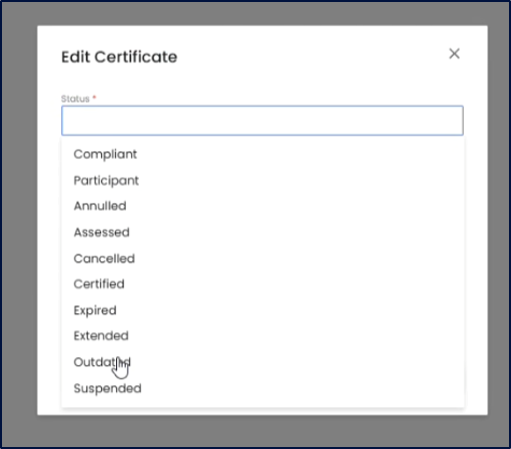
In the dropdown menu, select the applicable certificate status and click on "Save Changes".
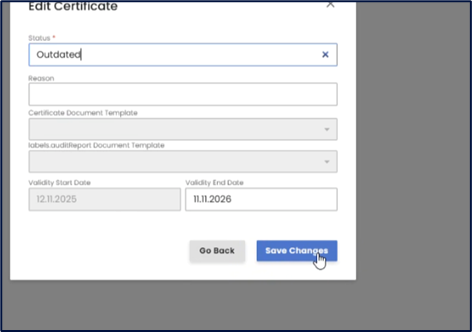
Note: Use „outdated“ for migrated duplicates.
Note. Certificate status change will automatically update the certificate version, similar to a certificate modification. E.g., if the certificate version was 1.1, a status change will set the new version to 1.2. The new certificate version will still be linked to its original Audit template used to issue version 1.1. (Certificate modification creates a new exact copy of the previous Audit template, but a certificate status change does not.)
Click on „Save Changes“ so your adjustments are applied and saved.
Within the platform, certificates can have different statuses depending on the standard/add-on, their lifecycle stage, certification decision, or administrative actions.
The certificate status plays a key role in how the certificate is interpreted when users search for information in the Supply Chain Portal.
Therefore, it is important to consider the meaning of each status before setting it.
The following statuses are available:
This status applies exclusively to standalone RMS when it becomes available in the IT live platform. It indicates participation in the system without certification being applicable at this stage.
Used for add-ons that do not lead to a certificate, but instead result in a Letter of Conformance (LoC). This status confirms that the assessment has taken place.
Applied to standards and the Nurture Module add-on once a positive certification decision has been issued. This status confirms that the certificate is valid and active within its defined validity period.
Used when a certificate validity period has been extended, in accordance with the GLOBALG.A.P. General Regulations. The certificate remains certified beyond its original validity end date.
This status is set when the certificate reaches its “valid to” date, including cases where the Certification Body shortens the certificate validity period. Once expired, the certificate is no longer valid.
Applied when a “suspension” sanction is imposed, in line with the GLOBALG.A.P. General Regulations. During suspension, the certificate is temporarily not valid.
Used to correct administrative mistakes. This status invalidates the certificate due to errors unrelated to compliance or certification outcomes.
This status is managed exclusively by Agraya and refers to contract cancellation. Certification Bodies must contact Agraya and provide the GGN, the cancellation date, and the reason for the cancellation for this status to be implemented.
This status must not be used. It has no operational purpose and should not be selected or applied to certificates.