How to select the correct audit template when issuing a certificate
The consequences of choosing an incorrect template and how to correct it.
Where the template will be stored in COS and SCP
Browsers where users can download certificate PDFs or Audit Reports
How to Select the Correct Audit Template When Issuing a Certificate
When issuing a certificate in the COS system, it is essential to select the correct Audit PDF template that matches the audit’s FAP (Farm Assurance Product) and option. The system contains all required templates, so you should:
Create Audit in COS.
Go to the Certificate screen.
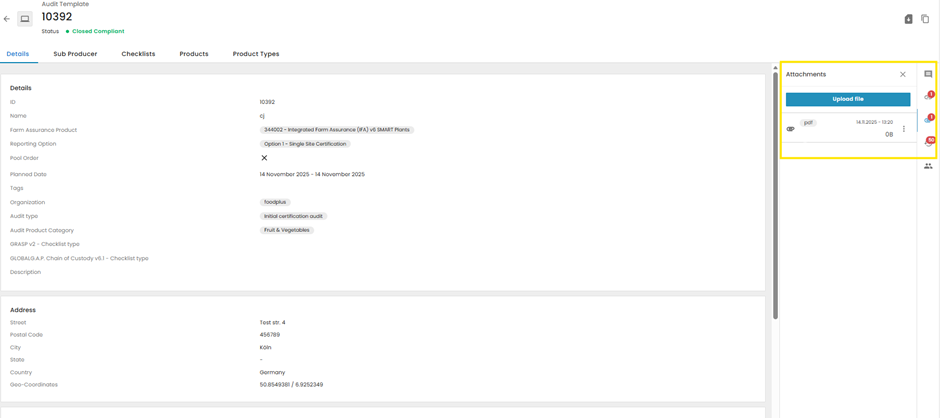
From the list, select the audit you want to certify. In the Attachments section in the Audit screen, once the certificate has been issued, the system automatically generates the Audit PDF.
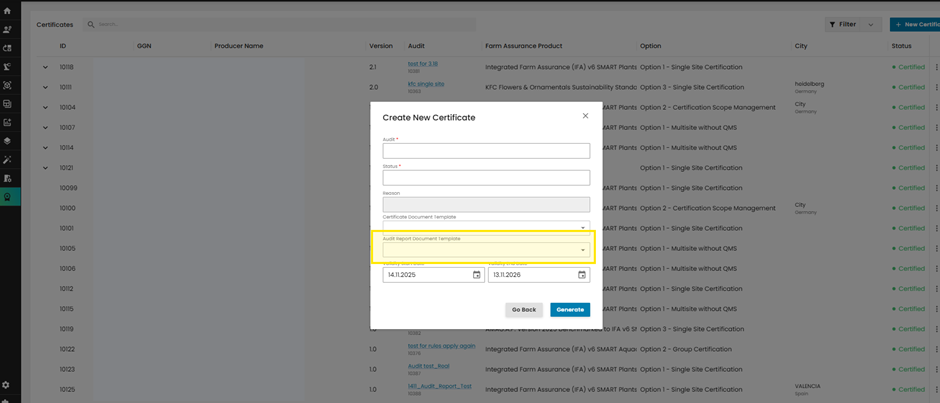
In the certificate creation dialog, choose the Audit PDF template that corresponds exactly to the audit’s FAP and option.
Generate Certificate.
Return to Audit Screen, view Audit PDF in the Attachments.
Make sure that the template is correct.
Note: Selecting the correct template ensures that the Audit PDF is generated properly and contains all the necessary information for the specific audit type.
Consequences of Choosing an Incorrect Template and How to Correct It
Consequences
If you select an incorrect audit template:
The generated Audit PDF may not match the audit’s requirements.
This can lead to compliance issues or the need to reissue the certificate.
How to Correct an Incorrect Template
If you realize that the wrong template was selected:
Return to the Certificate screen in COS.
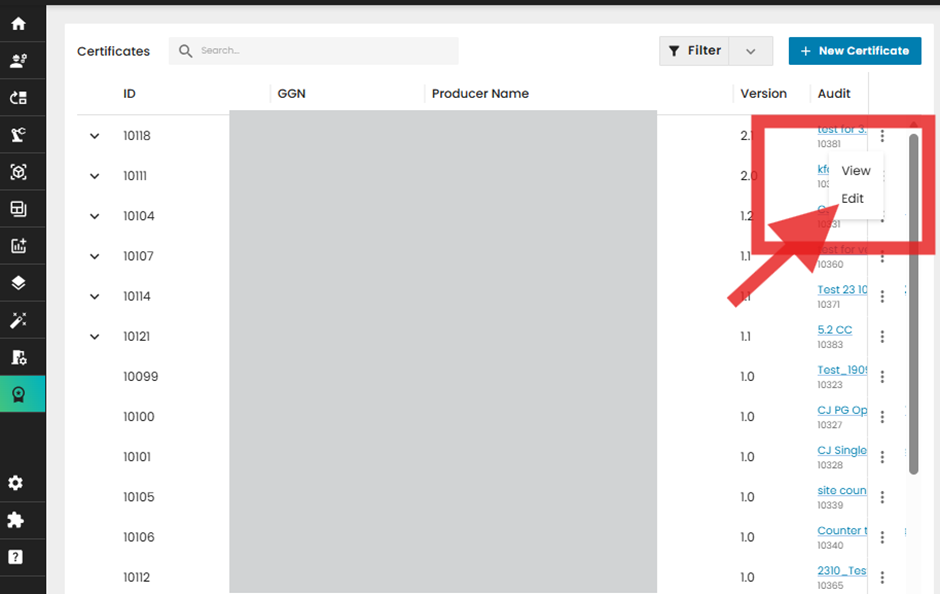
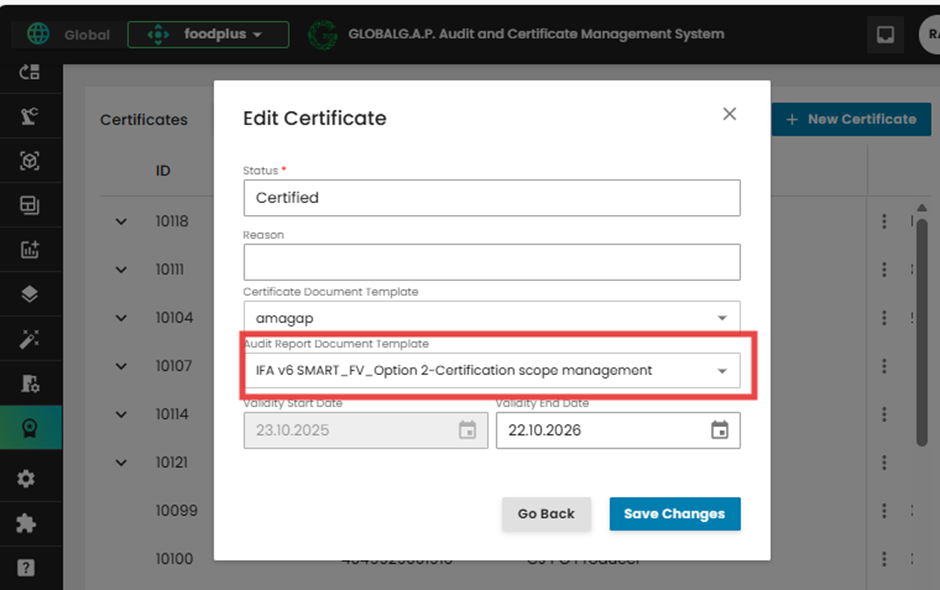
Click the three-dot menu (⋮) next to the certificate and select Edit.
In the edit dialog, choose the correct audit template from the dropdown.
Click Save Changes.
The system will automatically update the Audit PDF in the Attachments section of the audit screen, replacing the previous (incorrect).
Note: Templates can also be downloaded directly from the Audit window!
This process will not save and attach template to an Audit and it requires repetitive selection of correct audit report template each time the pdf report is to be downloaded.
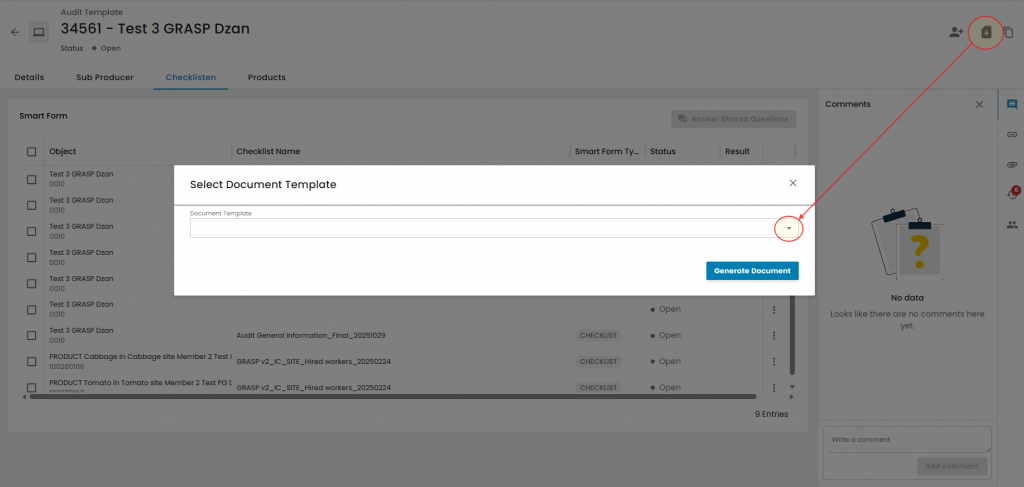
Step 1: Click on "Download Audit Report" icon and after that click on the dropdown menu arrow.
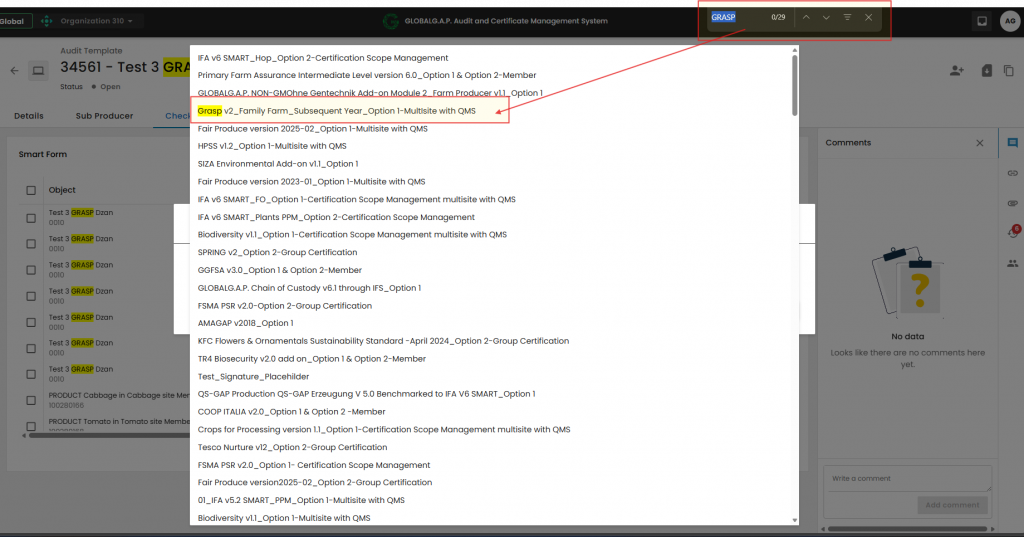
Step 2: Select applicable Audit Report template from the list. (Use Ctrl+F search function to find correct Audit Report template). After selection of correct template click on "Generate Document" and PDF Audit Report will be downloaded.
Where the Template Will Be Stored in COS and SCP
In COS
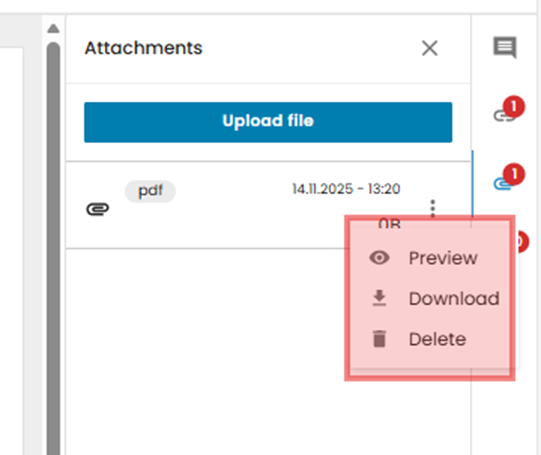
After issuing the certificate, the generated Audit PDF is automatically stored in the Attachments section of the audit screen. Here, you can preview, download, or delete the PDF as needed.
In SCP
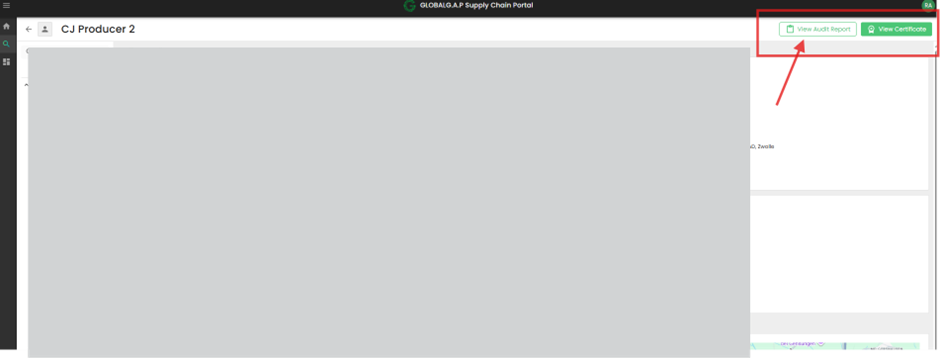
To view the Audit PDF in SCP, search for the relevant GGN (GLOBALG.A.P. Number).
Open the required certificate and click the View Audit Report button at the top of the certificate screen.
Browsers where users can download certificate PDFs or Audit Reports