The "Modification" option for certificates/LoCs in COS is applicable in the scenarios outlined below:
Scope extension (e.g., new product)
Note: Unannounced audits following GLOBALG.A.P. general regulations v6 shall use the "Recertification" option
Before initiating a “Modification,” verify that the certificate or LoC holds a status of “Certified/Assessed (for GRASP add-on).”
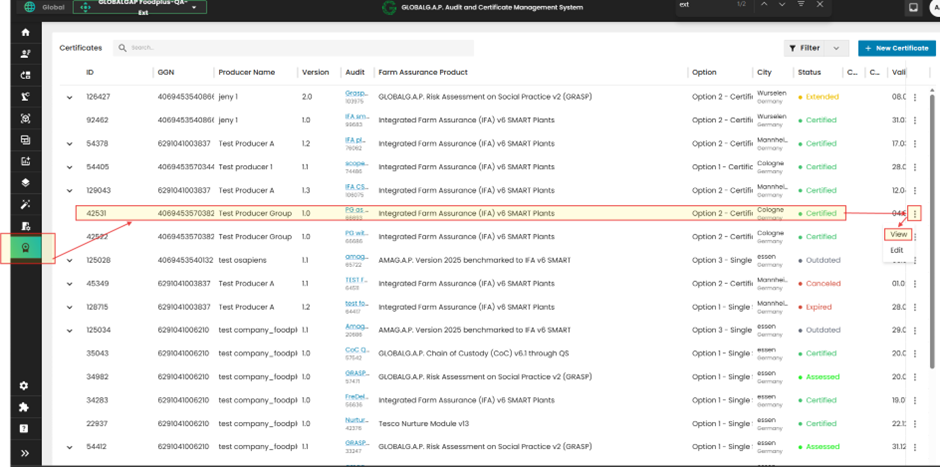
Navigate to the “Certificates” page in COS, find the certificate you want to modify, click the three dots on the right side of that certificate, and choose “View.”
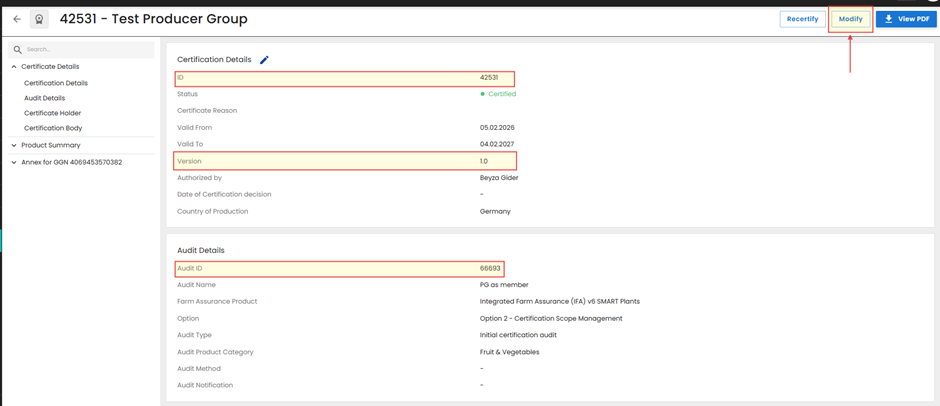
In this example, the Certificate with ID 42531, version 1.0 is issued against the Audit ID 66693. Click on "Modify" button.
Note: If you find that the "Recertify" and "Modify" buttons are unavailable or greyed out, it is important to check whether a modification has already been initiated. To do this, filter the Audits by the producer's GGN and look for the latest audit with the same name, FAP, and reporting option, but a different Audit ID. The certificate requiring modification will be associated with this audit.
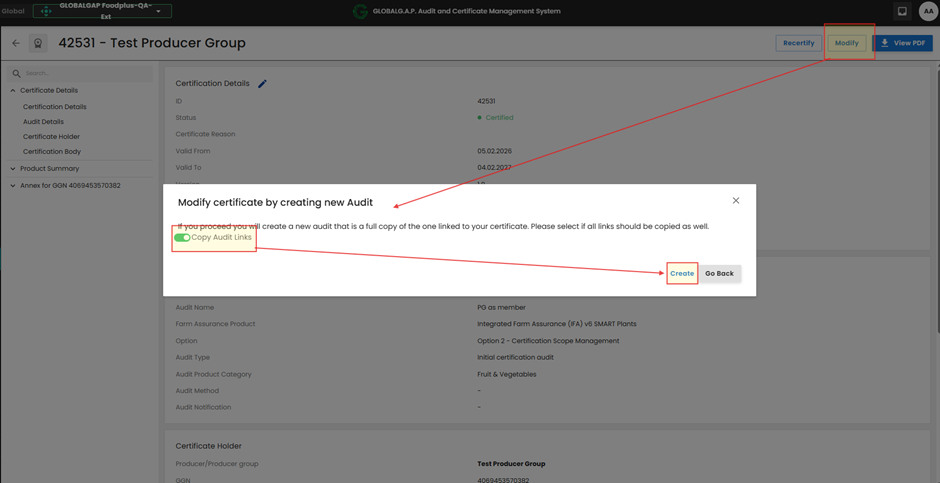
When you click the “Modify” button, a pop-up message will show up. Note: If you want to copy all related audit items—such as Add-on, QMS, Sample audits, and NC tickets—and have them connected to the modification audit, simply click the “Copy audit links” button.
Click on the “Create” button to begin the certificate modification process.
The system will show this message for a limited time based on data volume:
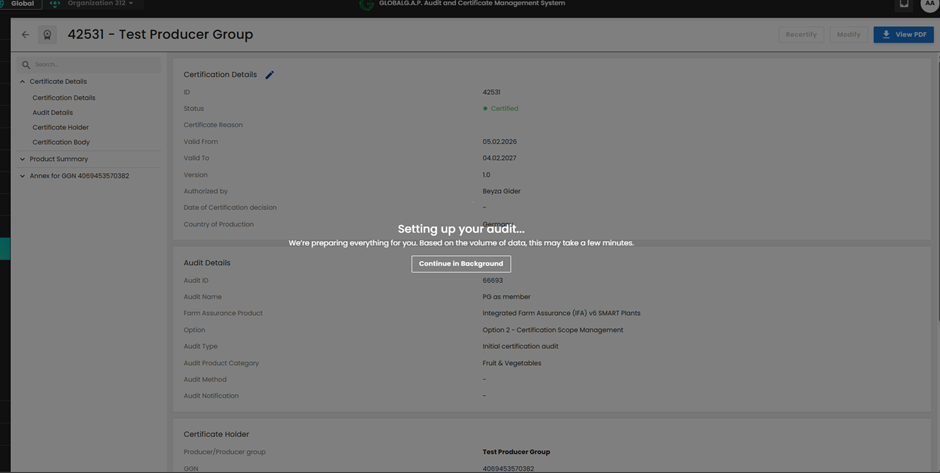
And it will generate an identical replica of our example audit ID 66693, which was previously used to issue our example Certificate ID 42531. This new audit copy will be assigned unique ID numbers; for example, in this instance, it receives ID 122646. It is advisable to update the Audit name to indicate the changes made and also to select "Modification audit" as the audit type.
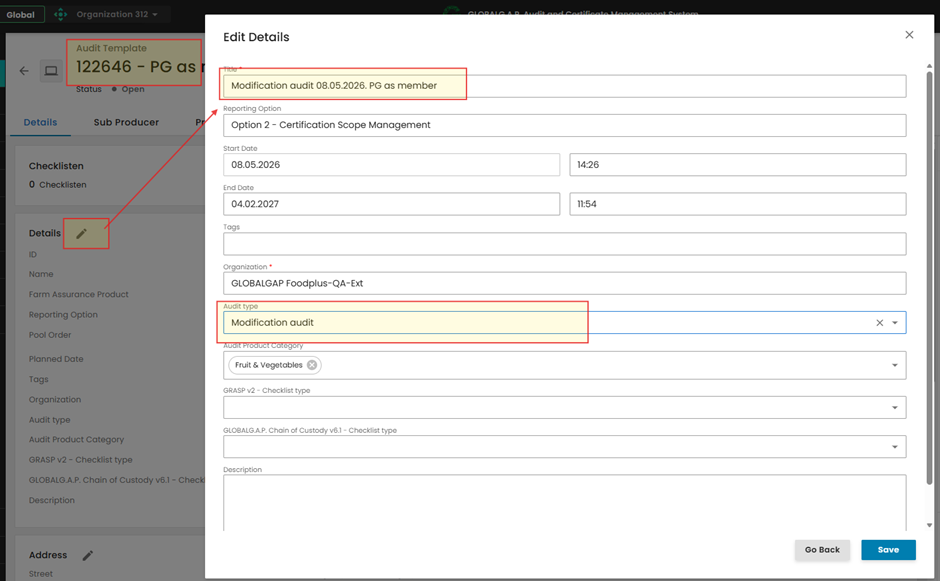
Next step is to correct the audit information.
Please note that all Smartforms will be accessible for editing.
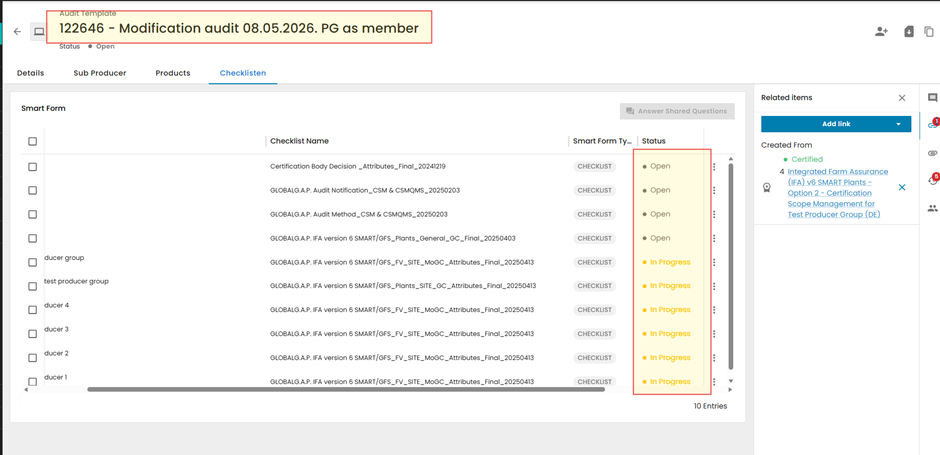
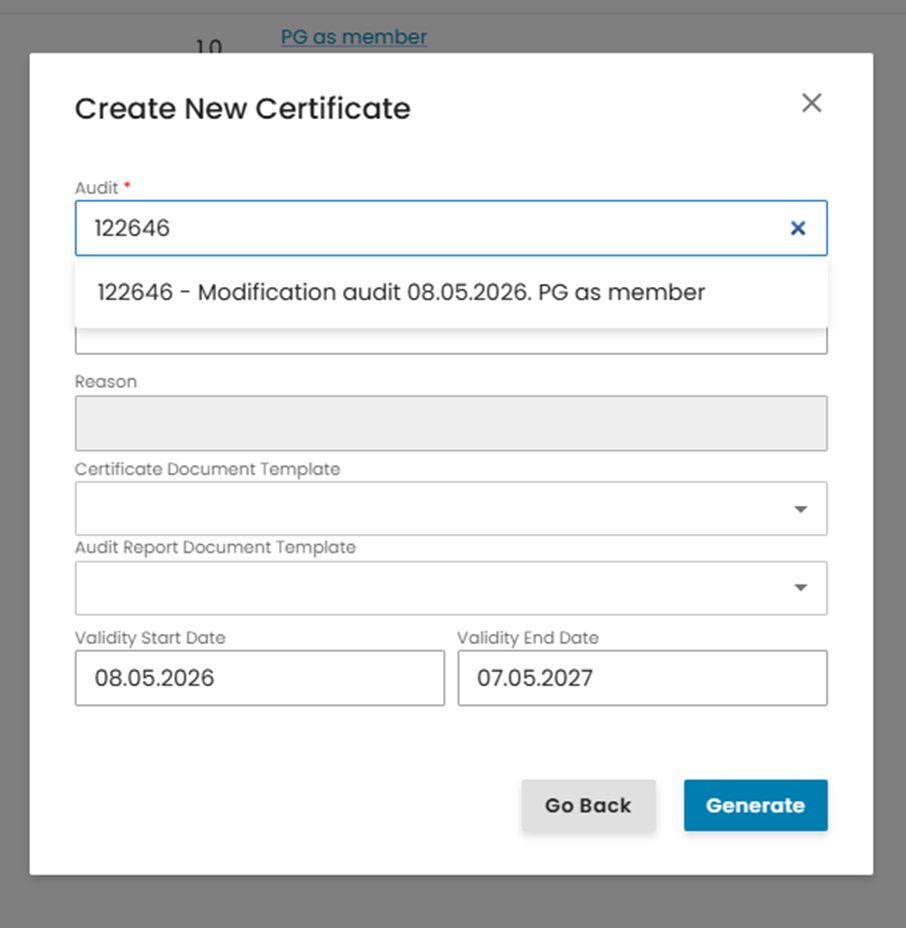
To complete the modification process, every Smartform must be saved and submitted. You should then mark the audit status as "Closed Compliant" and generate a new modification certificate by choosing the modification audit in the "Certificates" section from the "Create New Certificate" window.
Note: According to the new certification decision, a new "valid from" date will be recorded after the modification, but the same "valid to" date should be kept, as this is a modification of the original certificate