
The Producer Bulk Upload Tool is a new CertifierOS feature that enables CBs to register and upload new producer information using a dedicated Excel data sheet available in the system.
Key capabilities
Automatic registration of PG Members
Producer group members can be assigned automatically to their producer group by using the producer group’s GGN as the reference in the Producer Hierarchy under Parent GGN.
Note: The PG itself must be created manually to receive its GGN to use it in the Bulk Upload Tool as a parent
End-to-end process flow:
1. Open the Producer overview and click on the arrow next to Add Producer. The dropdown contains the bulk import option
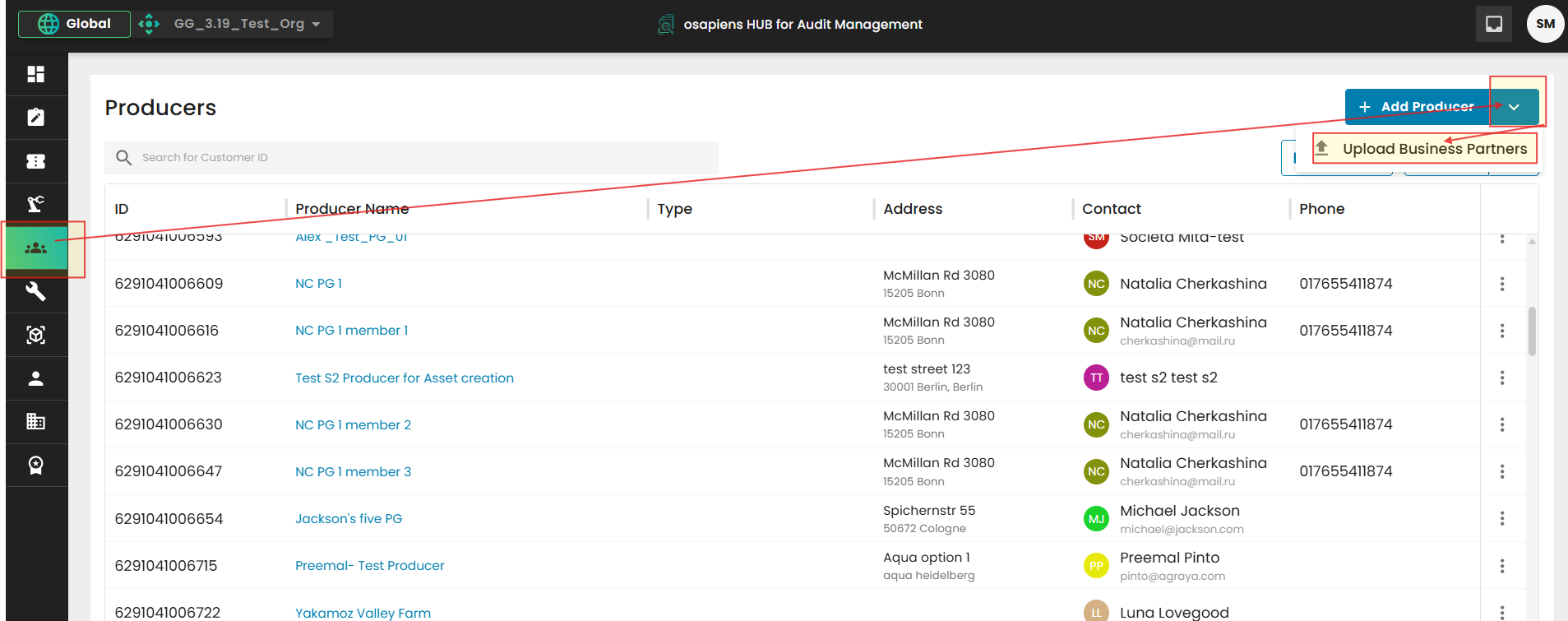
2. Select Upload BusinessPartners
On the Import Producer Data screen, download the official template first, then upload the completed Excel file.
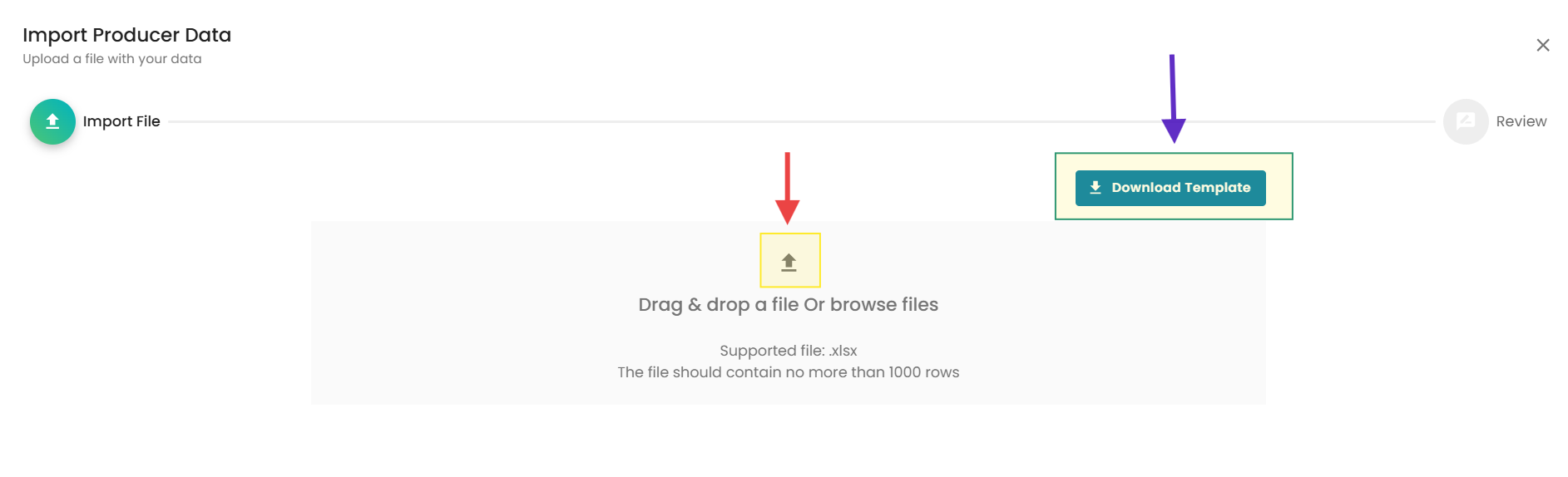
3. Download Template
The system will download the Producer upload template. This template must be used to register the Producers' information.
• Producer Name must be filled for every row.
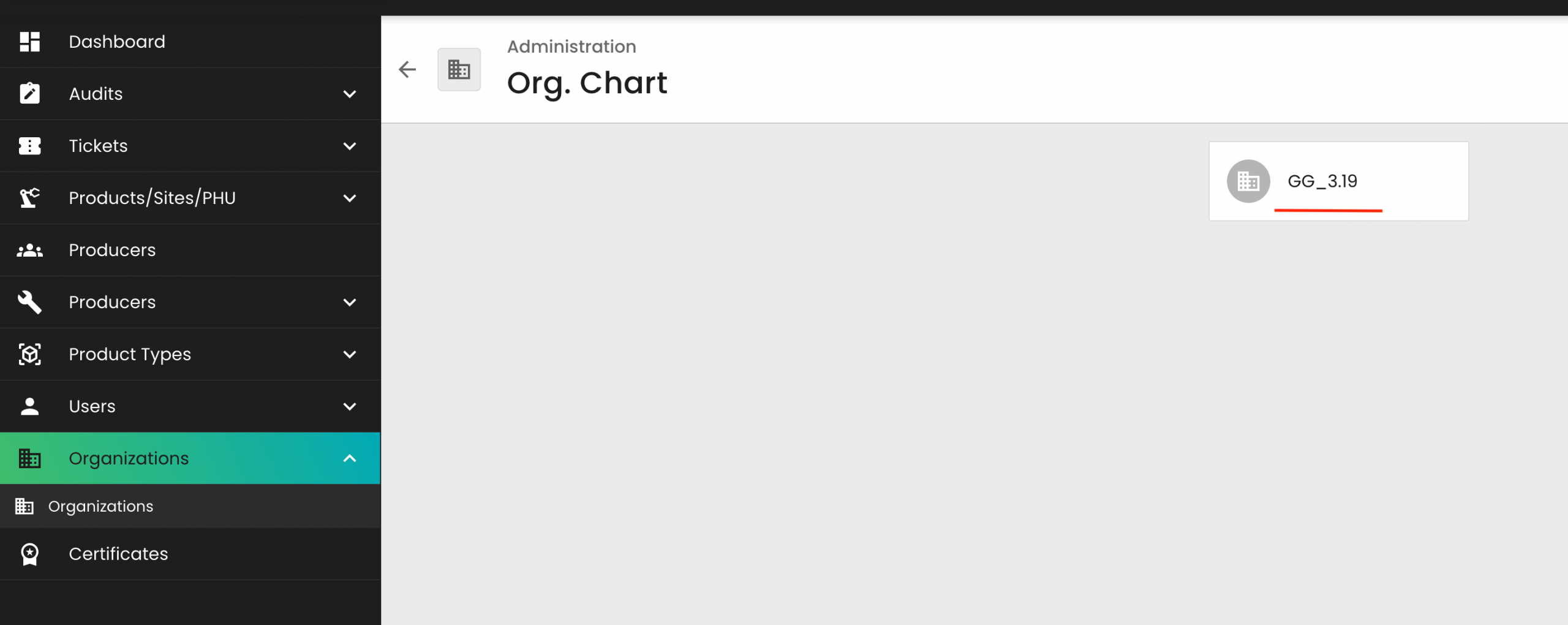
• Certification Body ID must be correct and consistent. It represents CB´s Name in COC not the GG CB Number!!!. Your CB's "Organization ID" can be found in CertifierOS under "Organizations":
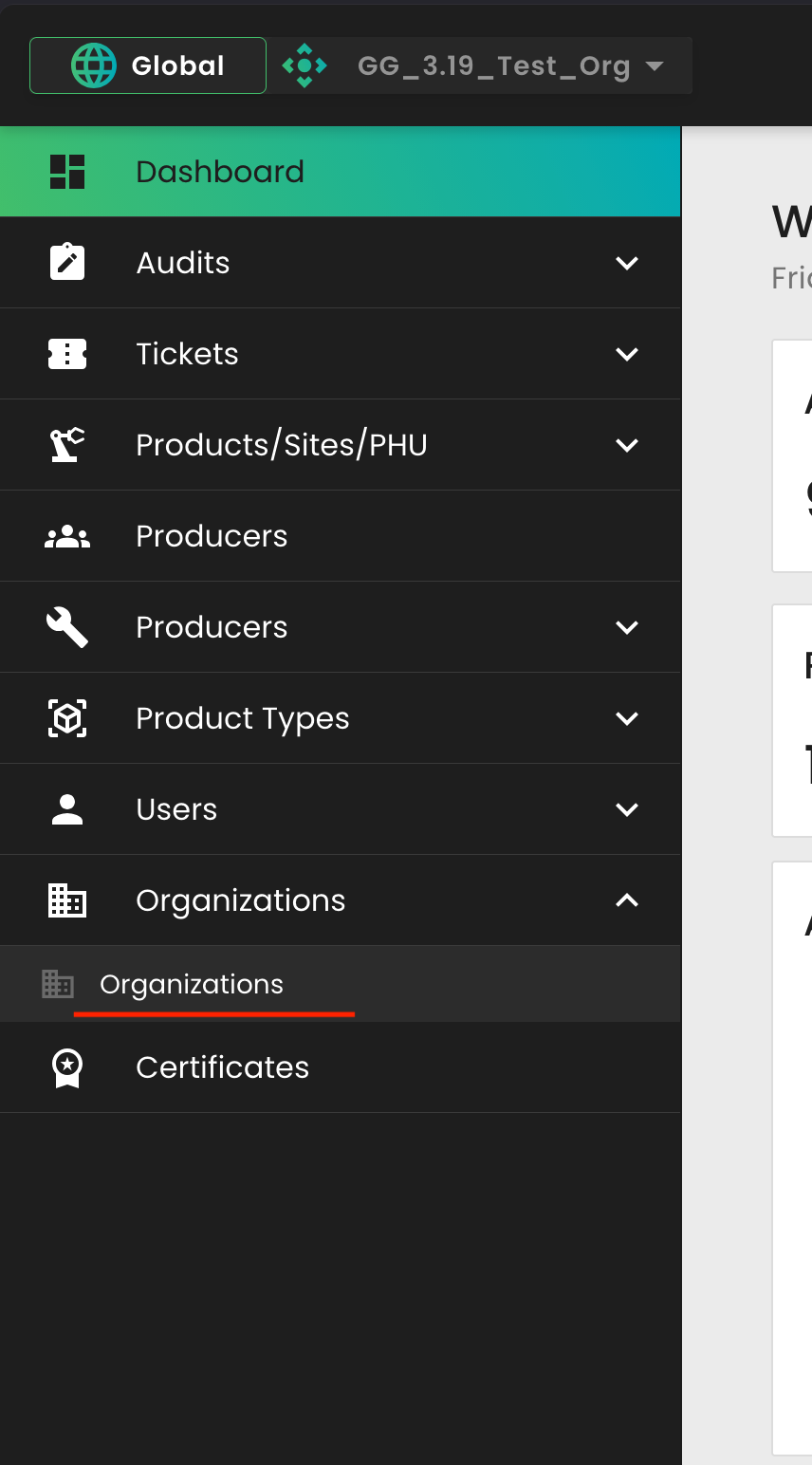
See here an example of a test CB Organization ID
• Producer Hierarchy should be filled when parent/child relationships are required
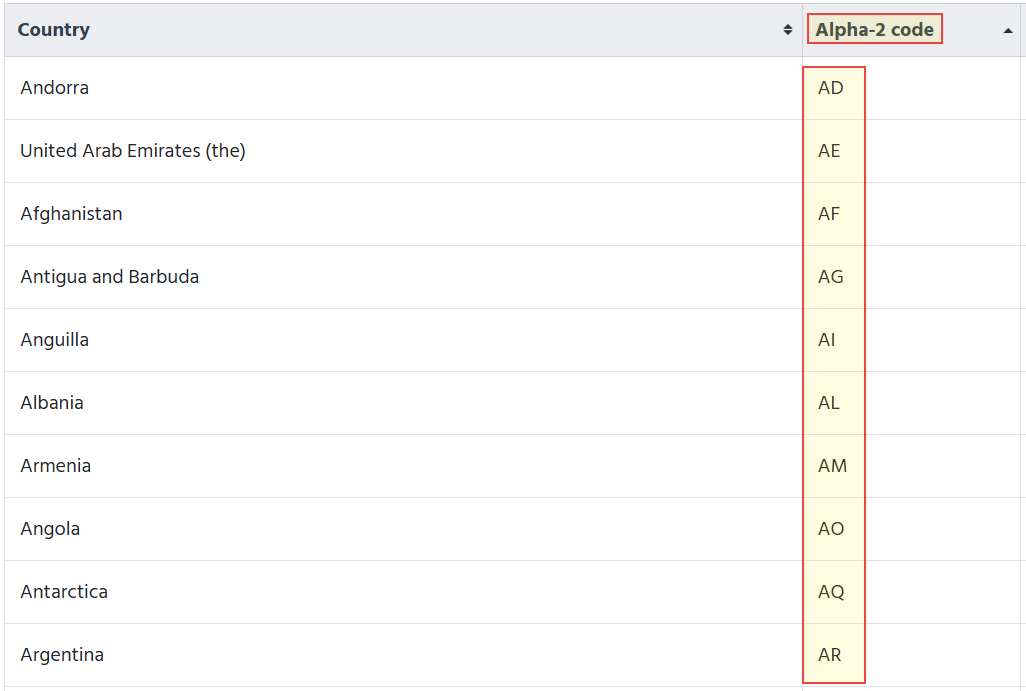
• Contact and address columns should be completed where available. Use ISO country code for the Column "Country"
• Do not rename, delete, or move template columns.
• Use a second import file if more than 1000 rows are required.
4. Fill in Producer data in the Excel sheet
Required steps for the data registration:
Data Import limitations:
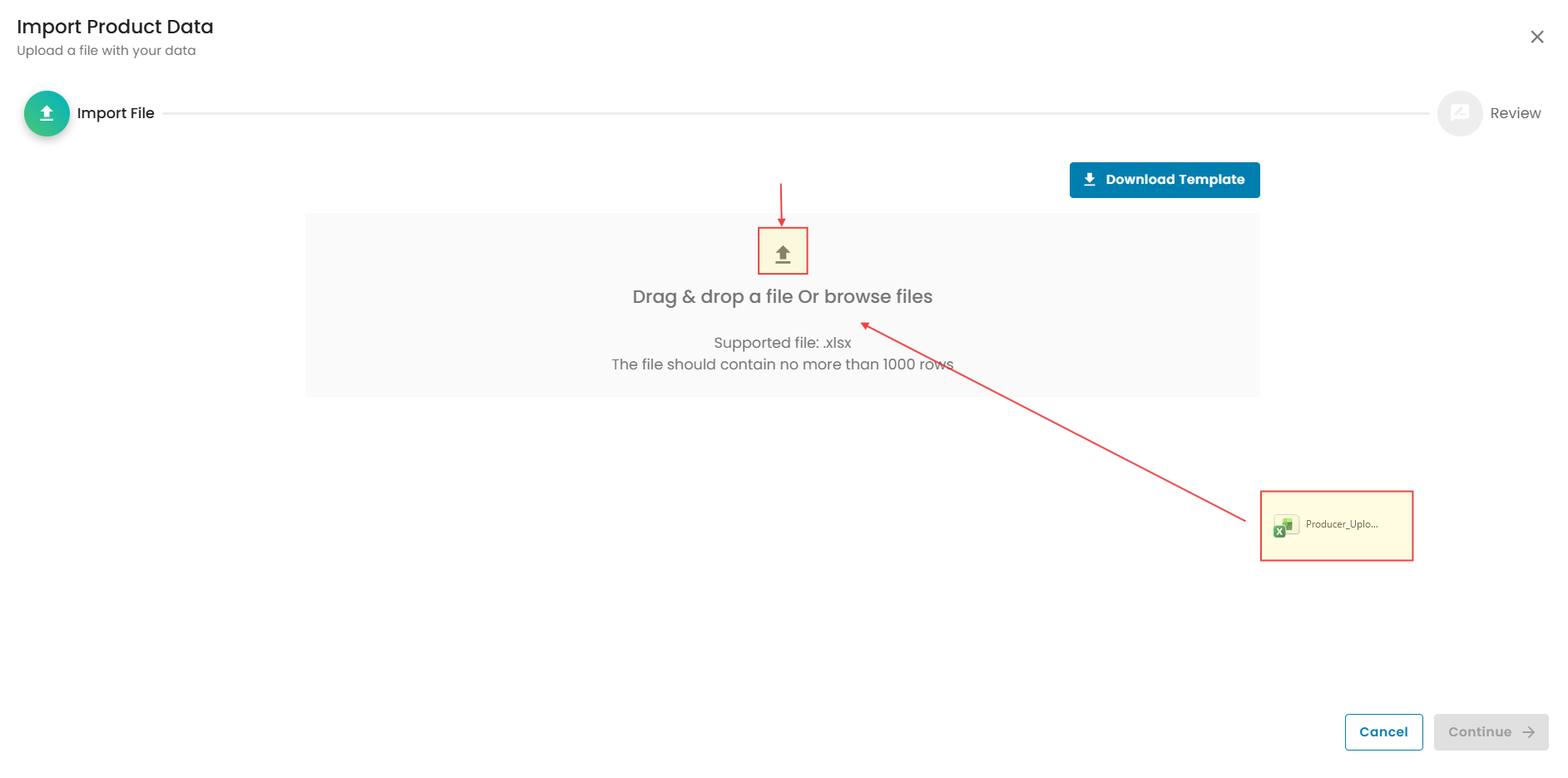
5. Upload Excel File
Drag and drop the upload sheet into the dedicated upload area on the Upload page, or browse your files to select it.
6. Review Preview
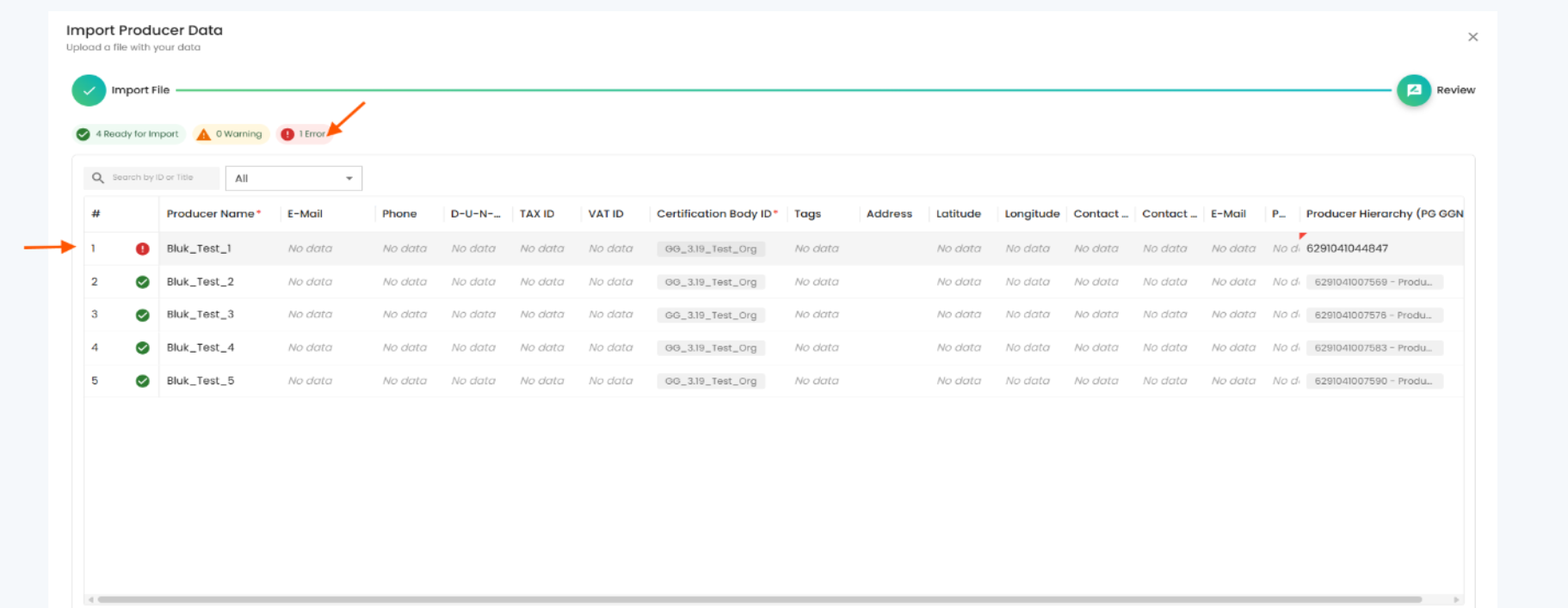
The system validates the Excel data and displays the import preview.
After clicking Start Import, confirm the number of items to be imported.
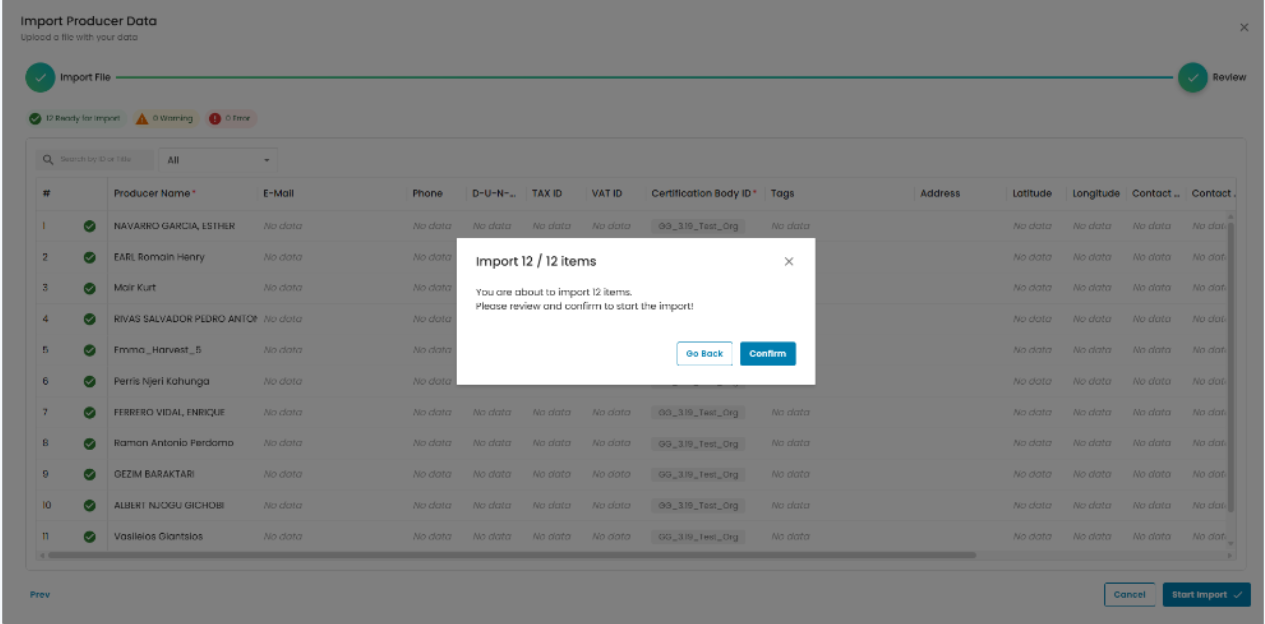
7. Start Import
8. Confirm
Common issues and quick fixes
Search the Producer Browser first. Use existing records instead of creating duplicates.
Download a fresh template and avoid changing column headers or workbook structure.
Correct mandatory fields, invalid values or missing Certification Body ID, then re-upload.
Split into multiple Excel files and import them separately.
Summary:
Producer bulk upload should follow one controlled path:
Producer overview page → Add Producer → Upload Business Partners → Download Template → Fill in Excel → Upload File → Review → Start Import → Confirm
Key rule: validate the Excel data before confirming the import.